
Place a tile in the grid
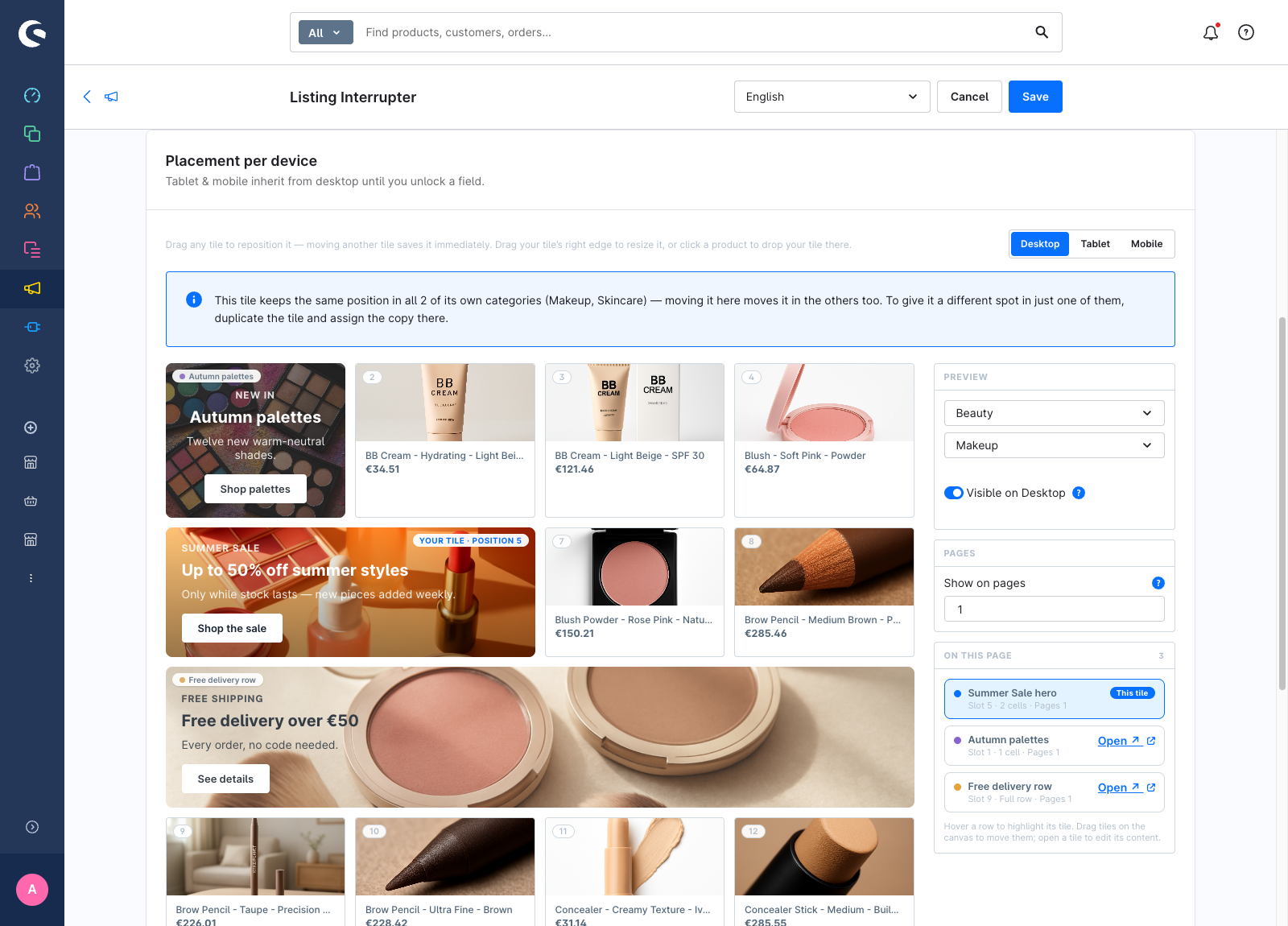
The Placement tab's canvas is a live model of your listing: real products, your shop's column count, and every tile the storefront renders on the page you are previewing. You place a tile by dragging it, not by typing a number.
This guide assumes you have a tile open and have already assigned it at least one category and one sales channel (see Target a tile).
Choose what to preview
The rail's Preview group drives the canvas:
- Sales channel and Category decide which products load. They default to the tile's first assigned channel and category. Neither is saved — they only make the canvas concrete, so pick whatever combination is easiest to judge.
- The device switcher at the top of the card decides which viewport you are editing.
If the canvas is empty, the tile has no category yet, or the channel/category combination has no visible products. Both cases say so in place.
Move the tile
Drag the tile onto a product slot and drop it. The tile splices into that slot, the products behind it shift one cell along, and the marker updates to Your tile · position N.
Clicking a product slot does the same thing — a quicker shortcut when you can see the target.
Two things are worth knowing about what a position means:
- Position
1puts the tile before the first product on the page. - The numbers on the product slots are true grid cells. A tile that is three cells wide pushes the next slot number to 4 — so dropping on slot 4 always lands the tile exactly where the dot said it would.
- A position beyond the number of products on a page clamps to the end of that page. The storefront does the same, so a short last page never breaks.
Make the tile wider
Grab the handle on the tile's right edge and drag right. The tile grows one product cell at a time, and the last step turns it into a full row hero that spans the whole grid.
Resizing is available wherever the previewed viewport has more than one column — desktop and tablet. Mobile is a single column, so a tile is always full-width there and has no handle.
The two widths behave differently in the grid:
- A tile of
Ncells takes the place ofNproducts on that page. - A full row tile adds its own row and takes the place of no products at all.
Preview another page
The rail's Pages group lists the pages this tile appears on, with a badge counting every tile the storefront renders there. Click a page — or type into Preview page — and the canvas reloads with that page's real products.
Pages after the last page-range boundary all share one layout, so the pager collapses them into a single K+ pill rather than listing them forever.
To change which pages the tile runs on, use Show on pages in the same group. See Target a tile.
Work with the other tiles on the page
The canvas shows every tile the storefront renders on the previewed listing, not just the one you are editing. The rail splits them into On this page and Not on this page, with the reason for each exclusion.
- Drag another tile to move it. That move is saved immediately — one confirmation per move, no extra Save click. Only the tile you opened can be resized.
- Click Open on a row to edit that tile's content in a new browser tab.
- Hovering a rail row highlights its tile on the canvas.
Inactive tiles never occupy a canvas slot. The tile you are editing always renders, dimmed if the storefront would not currently show it, so you can keep working on its placement.
When two tiles share a slot
If another tile already occupies the position you dropped on, a note lists the tiles sharing it. They render in priority order — higher priority first, and on a tie the older tile first.
When a tile targets several categories
A tile has one position, and that position applies to every category it targets. Moving it here moves it everywhere.
If you need the same banner in a different spot in just one category, duplicate the tile and assign the copy to that category. See Manage your tiles.
What the canvas approximates
The canvas is faithful about layout and honest about its limits, which it states in footnotes:
- It loads a preview window of 24 products per page.
- Column counts are derived from your listing's actual Bootstrap classes, not hardcoded.
- Availability rules on other tiles are not simulated, so a co-tile may be listed that a given shopper would not see.