
Manage your tiles
Everything you do to a tile as a whole — switch it on, copy it, find it, delete it — happens on the list page at Marketing → Listing Interrupter.
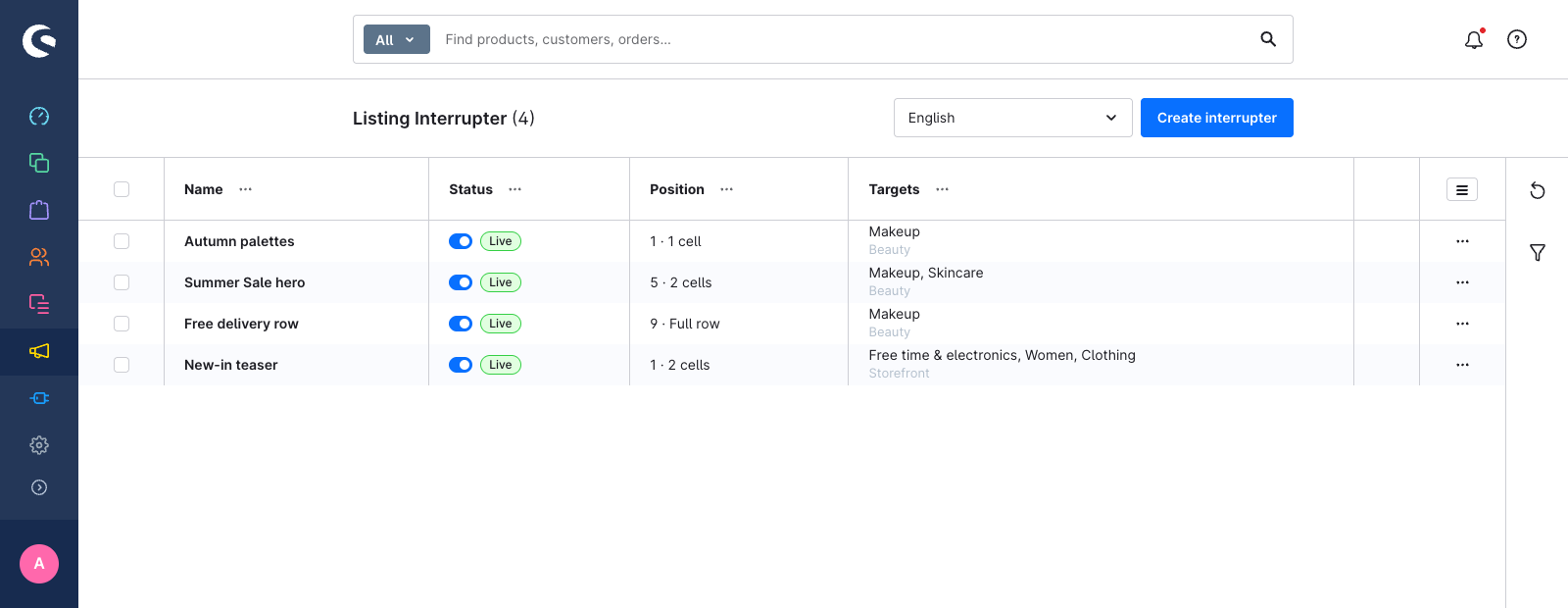
Read the list
| Column | Shows |
|---|---|
| Name | The tile's internal name. Click it to open the tile. |
| Status | The Active switch and the tile's status badge. |
| Position | The slot and the width, for example 5 · 2 cells or 9 · Full row. |
| Targets | The tile's categories, with its sales channels underneath. |
The status badge reads Live for an active tile and Inactive for a switched-off one. It reflects the Active switch — it does not try to predict whether a tile's availability rules match a given shopper right now, because the admin has no shopper to evaluate them against.
Switch a tile on or off
Use the switch in the Status column. It takes effect immediately, and the storefront listings that tile appears on refresh on their own — you never need to clear a cache by hand.
Find a tile
- Search — use the admin's search bar at the top of the window. Tiles are indexed by name, and searching while the module is open filters the list down to the matches.
- Filters — open the Filters sidebar on the right to narrow the list by status, sales channel, category, or availability rule. Reset all clears them.
- Refresh — the sidebar's refresh button reloads the list.
Duplicate a tile
Open a tile's context menu (⋯ at the end of the row) and choose Duplicate.
The copy carries everything: content in every language, appearance, position and width, all per-device overrides, its categories, sales channels and availability rules.
Duplicating is the way to give the same banner a different position in a different category — a tile has one position that applies to all of its categories, so you assign the copy to the one category that needs its own placement.
Delete tiles
Tick the checkboxes on the rows you want to remove and use the bulk delete action, or delete a single tile from its context menu. Shopware asks for confirmation first.
Deleting a tile removes its category, sales channel and rule assignments with it, and refreshes the listings it used to appear on.
Permissions
The plugin ships four roles under Settings → Users & permissions, in the Content group:
| Role | Lets a user |
|---|---|
| Viewer | Open the module and read tiles |
| Editor | Change tiles, including the inline Active switch |
| Creator | Create and duplicate tiles |
| Deleter | Delete tiles |
Editor, Creator and Deleter each include Viewer; Creator also includes Editor. A user without the Editor role sees the Active switch and the Save button disabled.