
Getting started
In this tutorial you install Product Sorting, put two products at the top of a category, and see them lead the category on the storefront. It takes about ten minutes.
You need:
- a Shopware 6.7 shop with at least one active storefront sales channel,
- a category that has products and is part of that sales channel's navigation,
- an admin user who is allowed to edit categories.
1. Install and activate the plugin
- In the Administration, open Extensions › My extensions.
- Find Product Sorting — Drag & Drop for Categories and click Install.
- When the installation has finished, switch the plugin to Active.
If you work on the command line, this does the same thing:
bin/console plugin:refresh
bin/console plugin:install --activate SsdProductSorting
bin/console cache:clear
2. Open the Sorting tab of a category
- Open Catalogues › Categories.
- Select the category you want to arrange in the category tree.
- Open the Sorting tab, next to the other category tabs.
The tab shows a Custom order card with one switch, Custom order active. The switch is off, so the category still behaves exactly as it did before you installed the plugin.
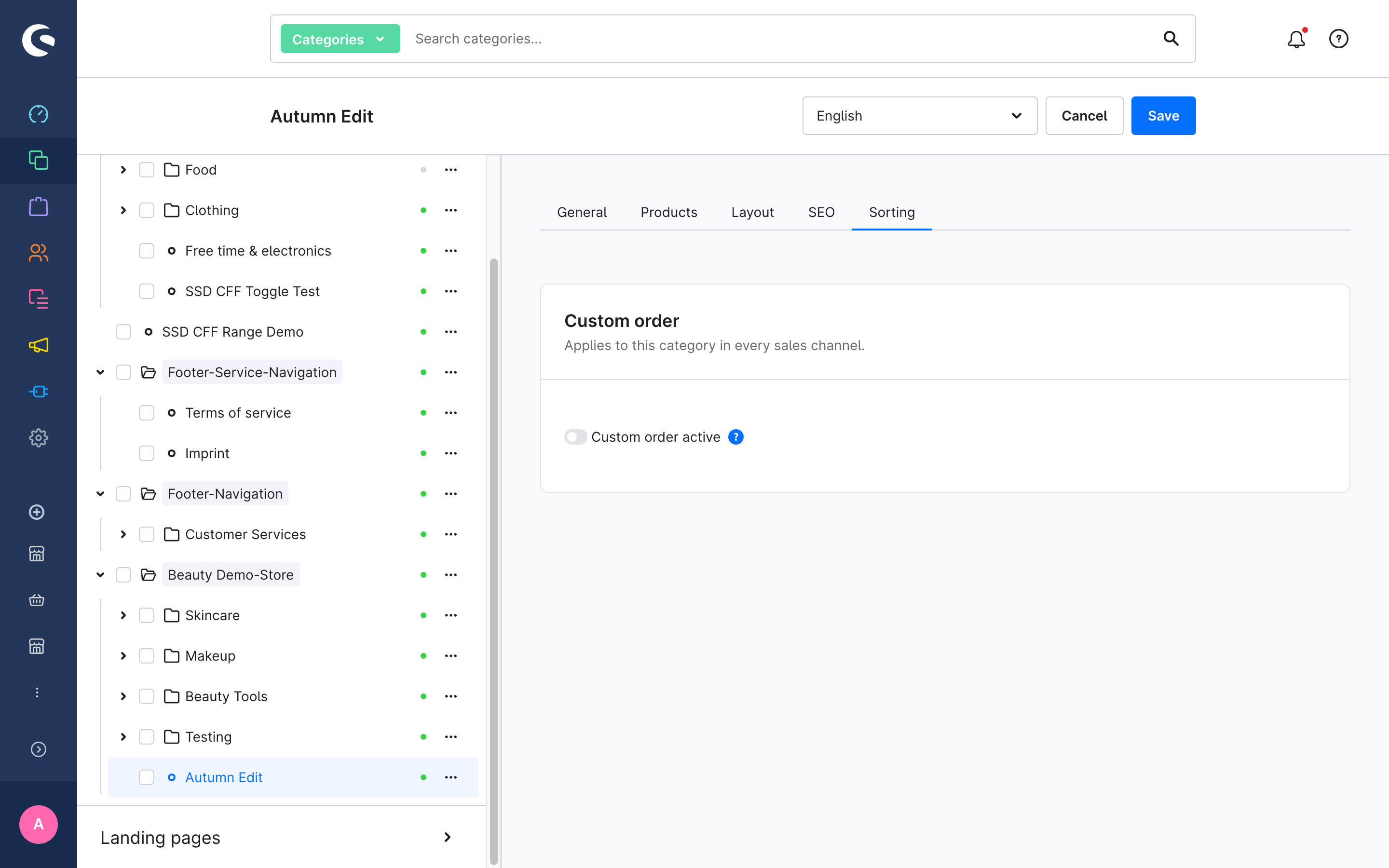
3. Switch the custom order on
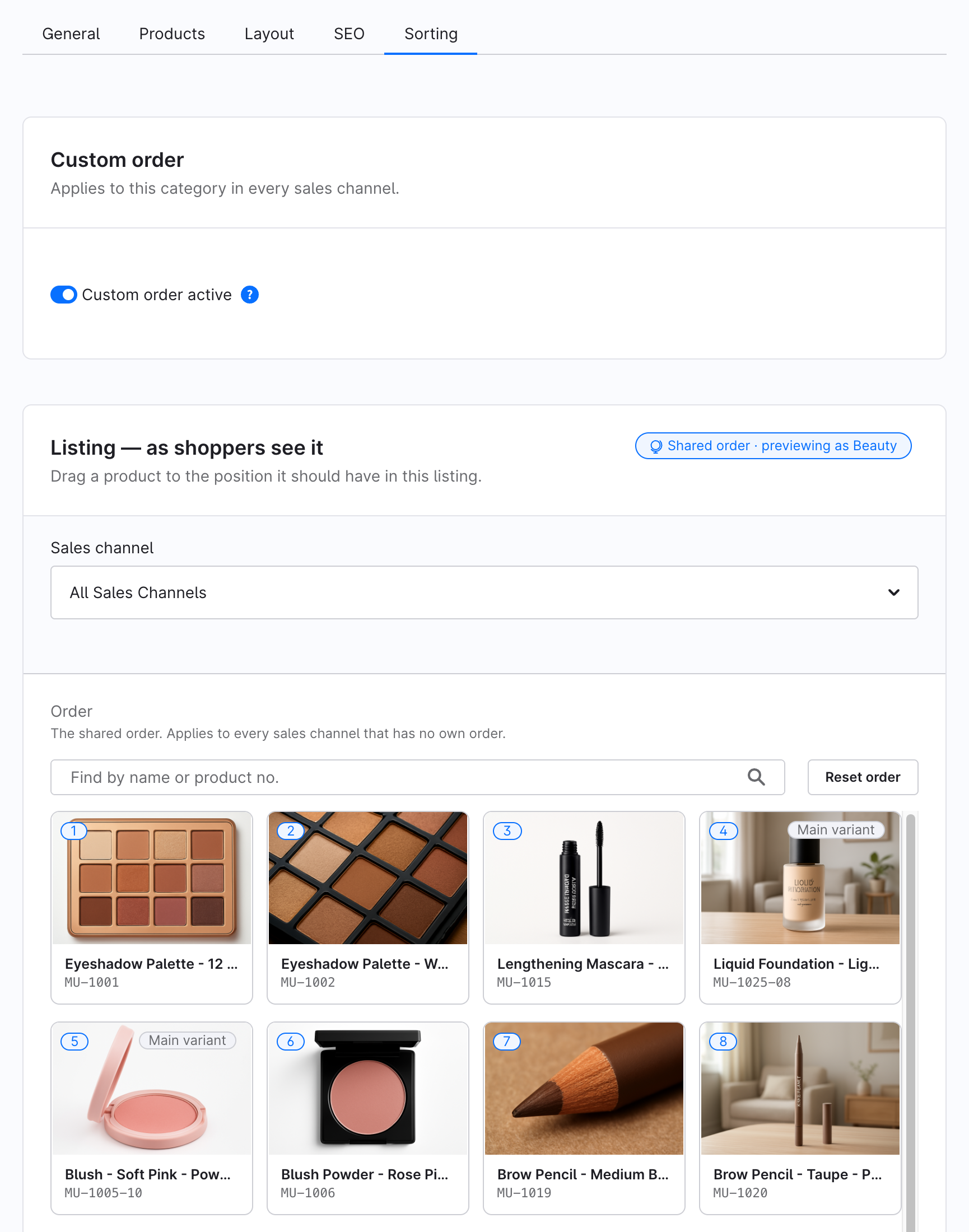
Turn on Custom order active. The setting saves by itself.
A second card appears below it: Listing — as shoppers see it. Its sales channel field is set to All Sales Channels, which means you are editing the shared order. The canvas below it shows every tile of the category in the order shoppers get right now.
4. Drag two products to the top
- Pick the product you want shoppers to see first. Drag its tile onto the first tile of the canvas. While you drag, a label shows the slot you're about to drop on, for example Drop → slot 1.
- Release the tile. It moves to slot 1, and every other tile shifts down by one.
- Drag a second product onto the tile in slot 2 and release it.
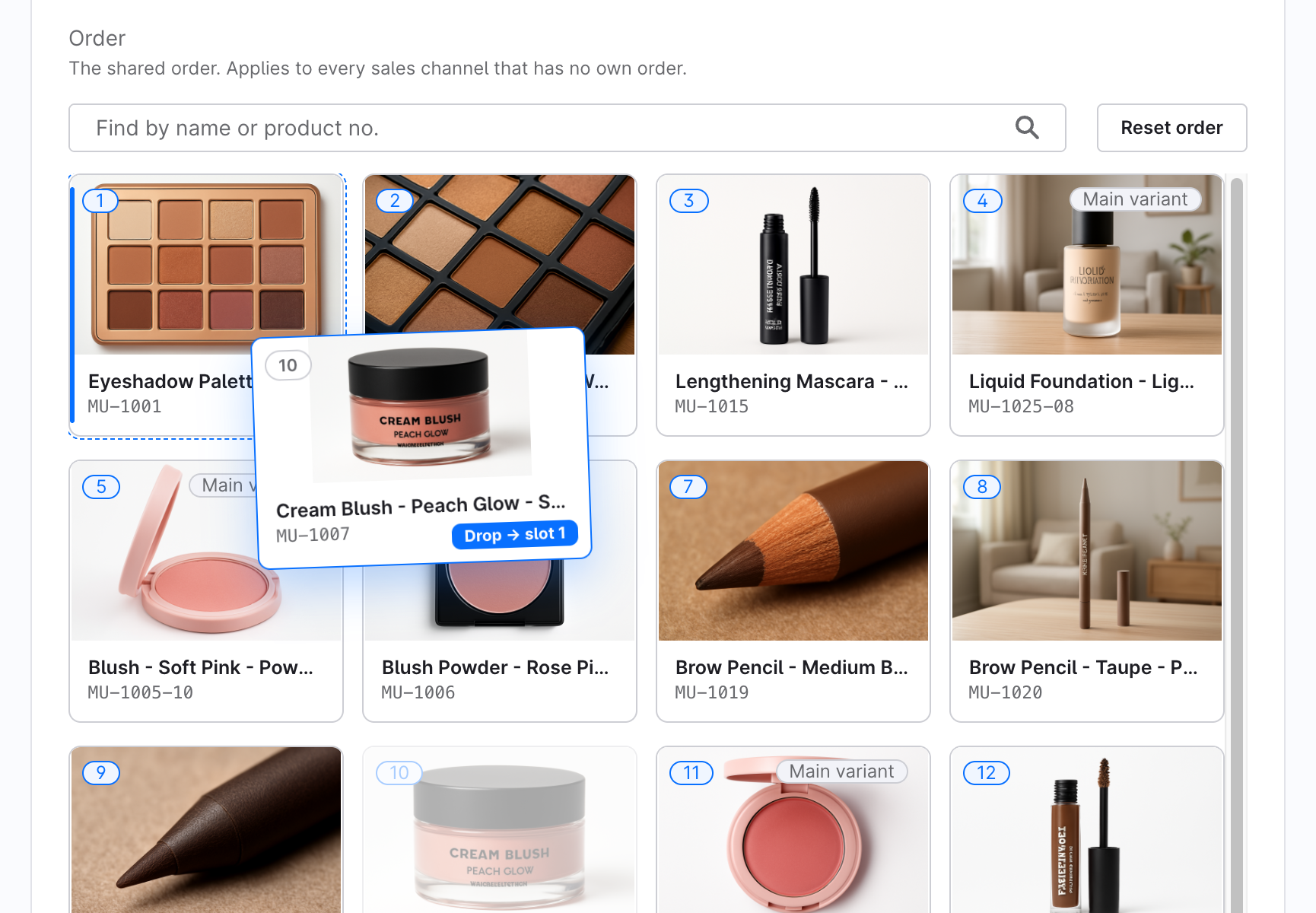
There's no save button. Each move is saved in the background as soon as you make it. The products you didn't move keep following the automatic order, and that's intentional: you only arrange the products that matter.
5. Check the storefront
- Open the category in your storefront.
- Look at the sorting dropdown above the product listing. It now shows Recommended, and the category opens sorted that way.
- Your two products lead the listing, in the order you gave them. Every other product follows the automatic order.
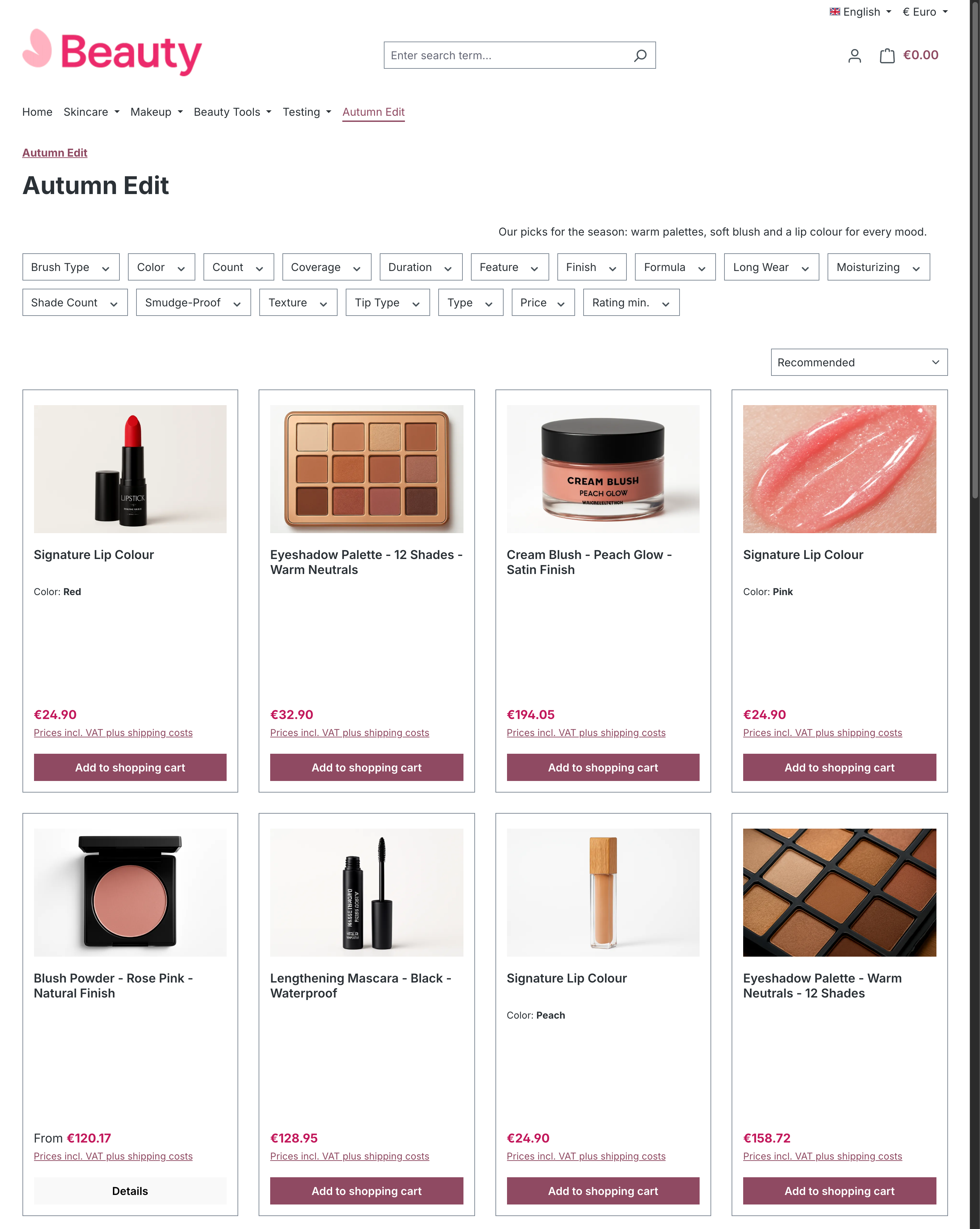
You don't have to clear any cache. Saving an order refreshes the category's cached pages.
What you've done
You switched on a custom order for one category and placed two products at the top. The storefront now serves that order to shoppers, and all your other sortings are still in the dropdown.
Next steps
- Pin products to fixed positions: move by slot number, send products to the bottom, and find products in large categories.
- Give a sales channel its own order
- Concepts: how the custom order works