
Getting started
In this tutorial you will install Ultimate Upsell Engine and put a first cross-sell offer live: a product row on the shopping cart page. At the end you will see your own products recommended in the storefront cart.
You need administrator access to your Shopware 6 admin and about 15 minutes.
1. Install and activate the plugin
- In the admin, go to Extensions > My extensions.
- Upload the plugin zip (or install it from the Shopware Store listing).
- Click Install, then switch the toggle to activate it.
After activation you find the plugin under Marketing > Ultimate Upsell in the main menu.
2. Open the offer list
Go to Marketing > Ultimate Upsell. The left sidebar lists your offers grouped by the page they appear on; the right side is the editor.
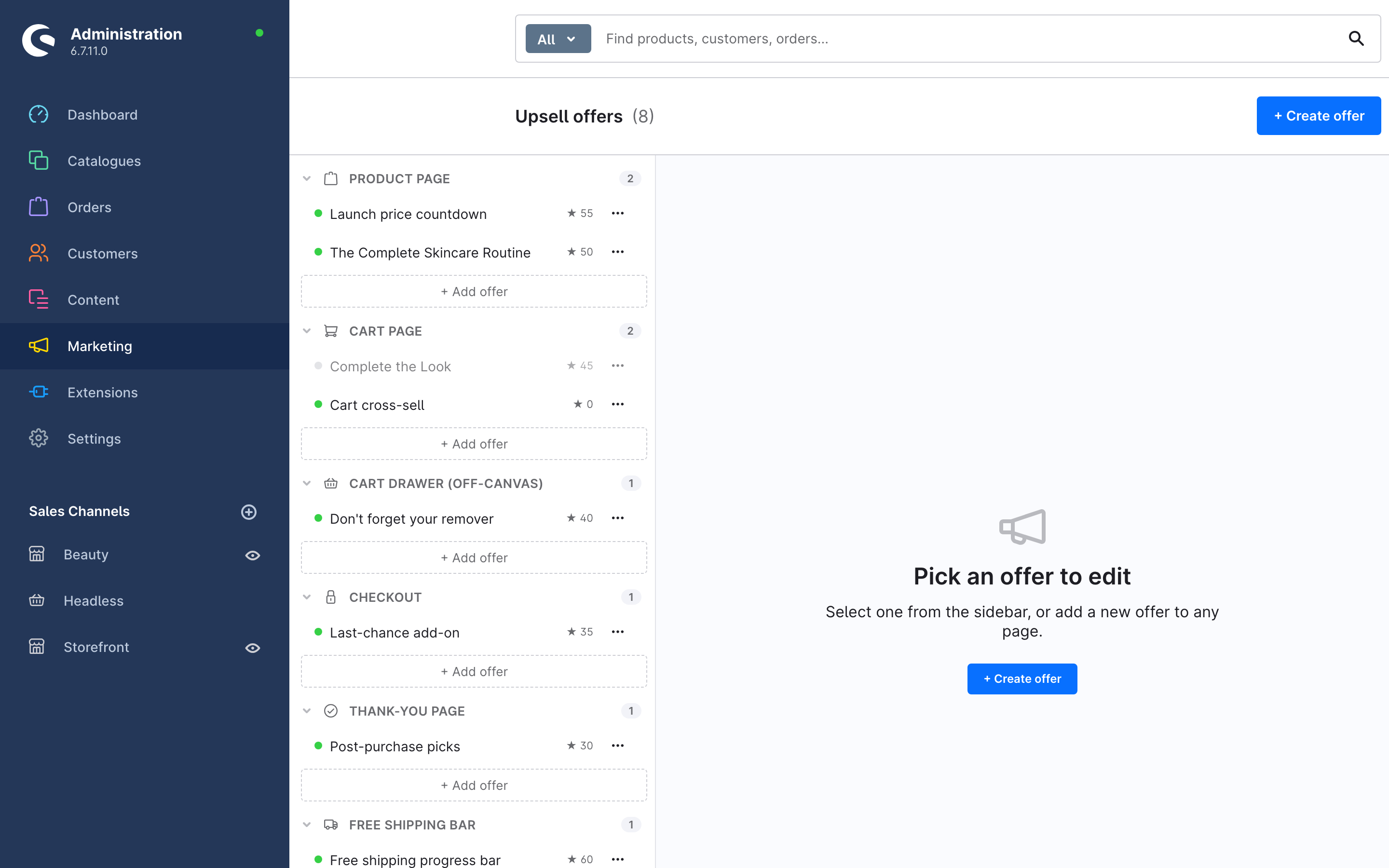
Click Add offer in the Cart page group of the sidebar.
3. Name the offer
The editor opens on the General tab.
- Enter a Name, for example
Cart cross-sell. The name is internal — only used to find this offer in the admin. Customers never see it. - Leave Priority at
0. - Click Next.
4. Confirm the placement
The When tab defines the audience — leave the rules empty for now, which means everyone sees the offer, and click Next.
The Where tab shows the placement. Because you started from the Cart page group, Cart page is already selected: the offer renders above the cart summary on the shopping cart page.
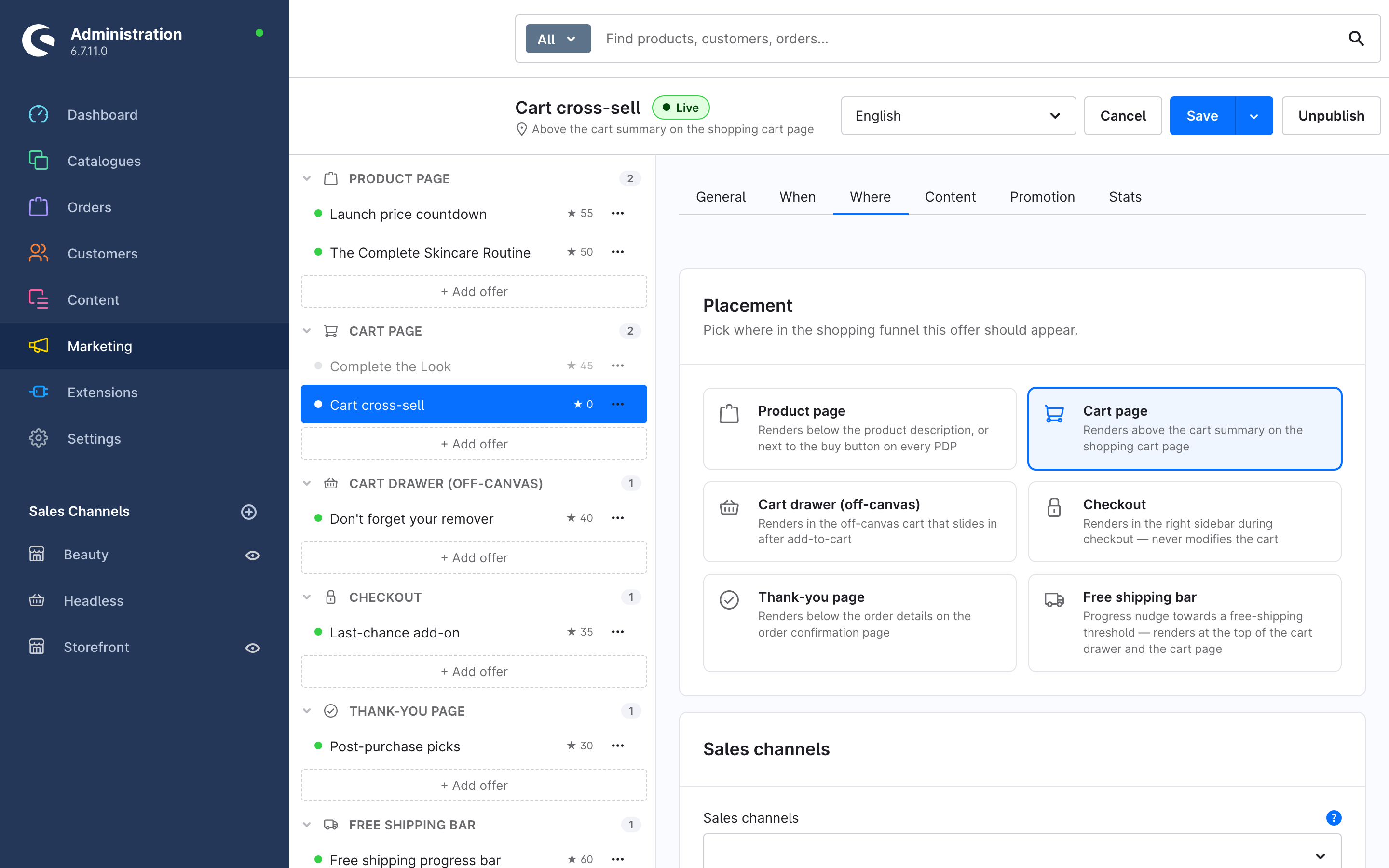
Leave Sales channels empty so the offer shows on every channel, and click Next.
5. Pick a layout and the products
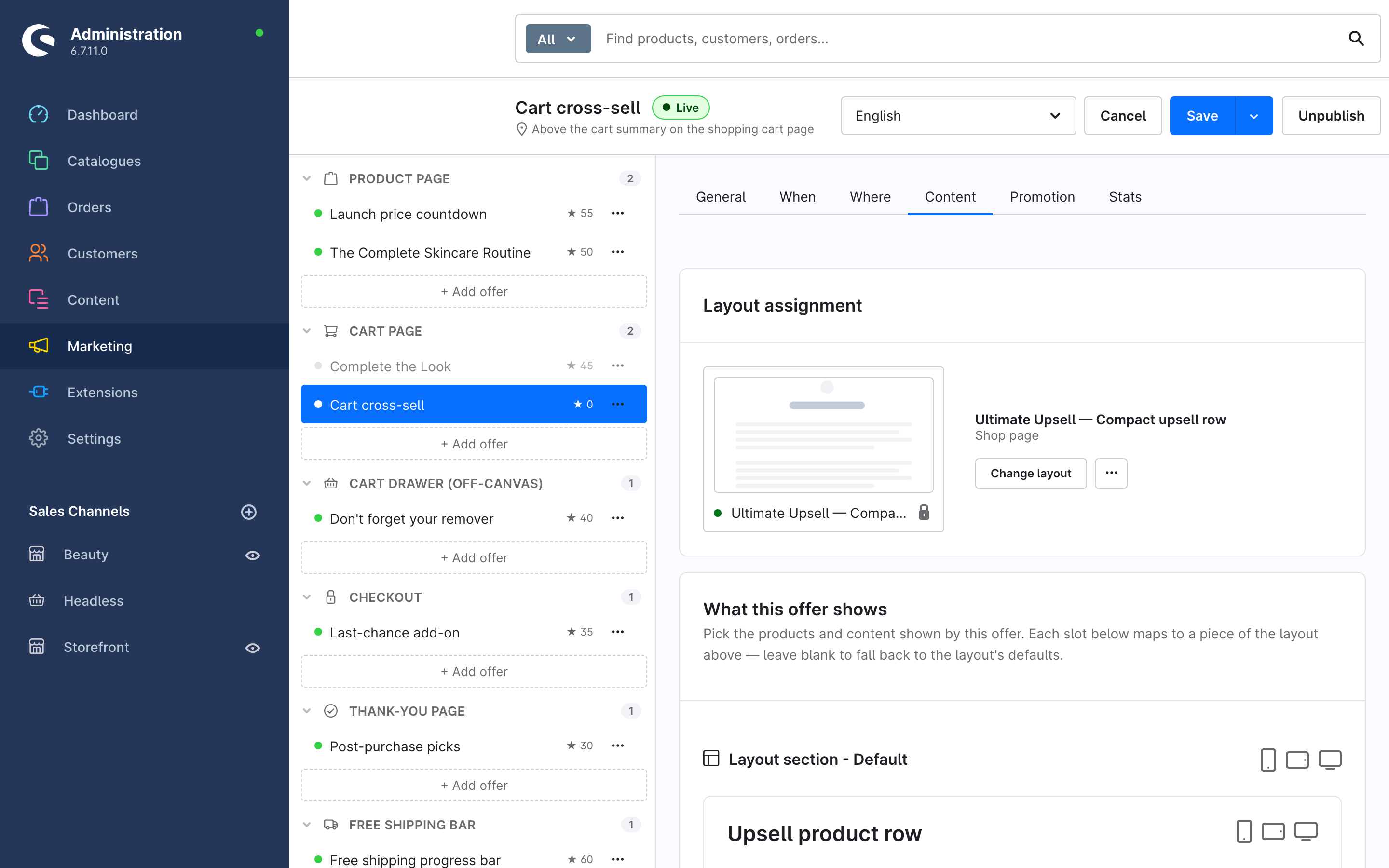
The Content tab decides what the offer shows.
- In Layout assignment, click Choose layout and pick the shipped layout Ultimate Upsell — Compact upsell row — it contains the Upsell product row element, made for narrow contexts like the cart.
- In What this offer shows, pick two or three products in the Products field. The order is preserved on the storefront.
- Optionally set a Title, for example
You might also like.
6. Publish
Click Publish in the top bar. The status chip switches from Draft to Live and Shopware confirms: Saved — offer is live on the storefront.
7. See it in the storefront
Open your storefront, add any product to the cart and go to the shopping cart page. Your product row renders above the cart summary:
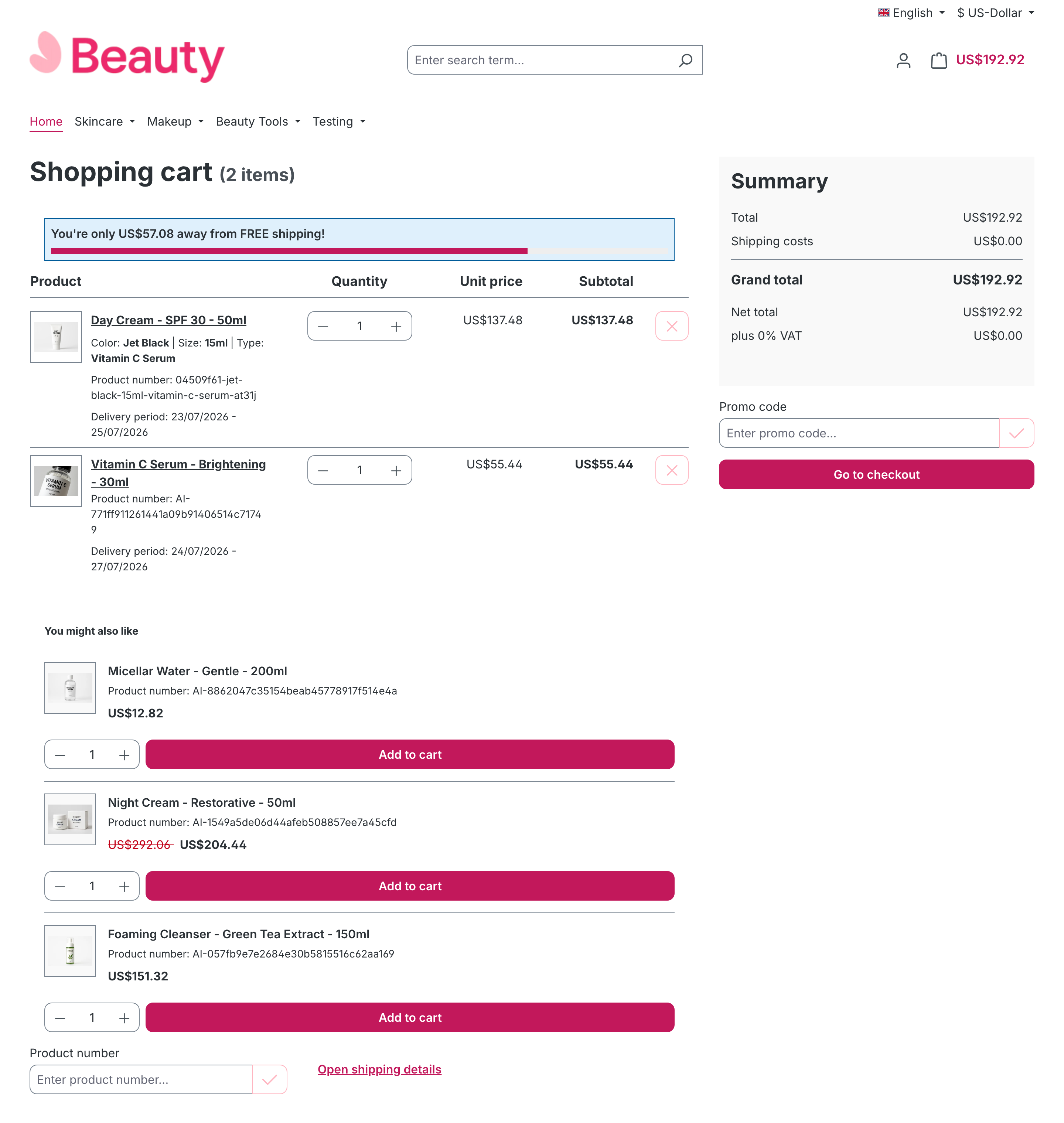
That is the whole loop: an offer is a CMS layout, placed in a slot, targeted at an audience, published with one click.
Where to go next
- Give the offer an audience: Target offers with rules, channels and priority
- Sell a set instead of single products: Create a bundle offer with a discount
- See what the offer earns: Track what an offer earns