
How to assign a packaging profile to products
Assigning a packaging profile to a product tells PackGuard which constraints to apply when that product appears in an order. Without an assignment, PackGuard treats the product as unconstrained — all active boxes are candidates and no padding is added.
Prerequisite: At least one packaging profile exists. See Create a packaging profile.
Assign a profile to a single product
- Open the product in Catalogues > Products.
- Go to the Specifications tab.
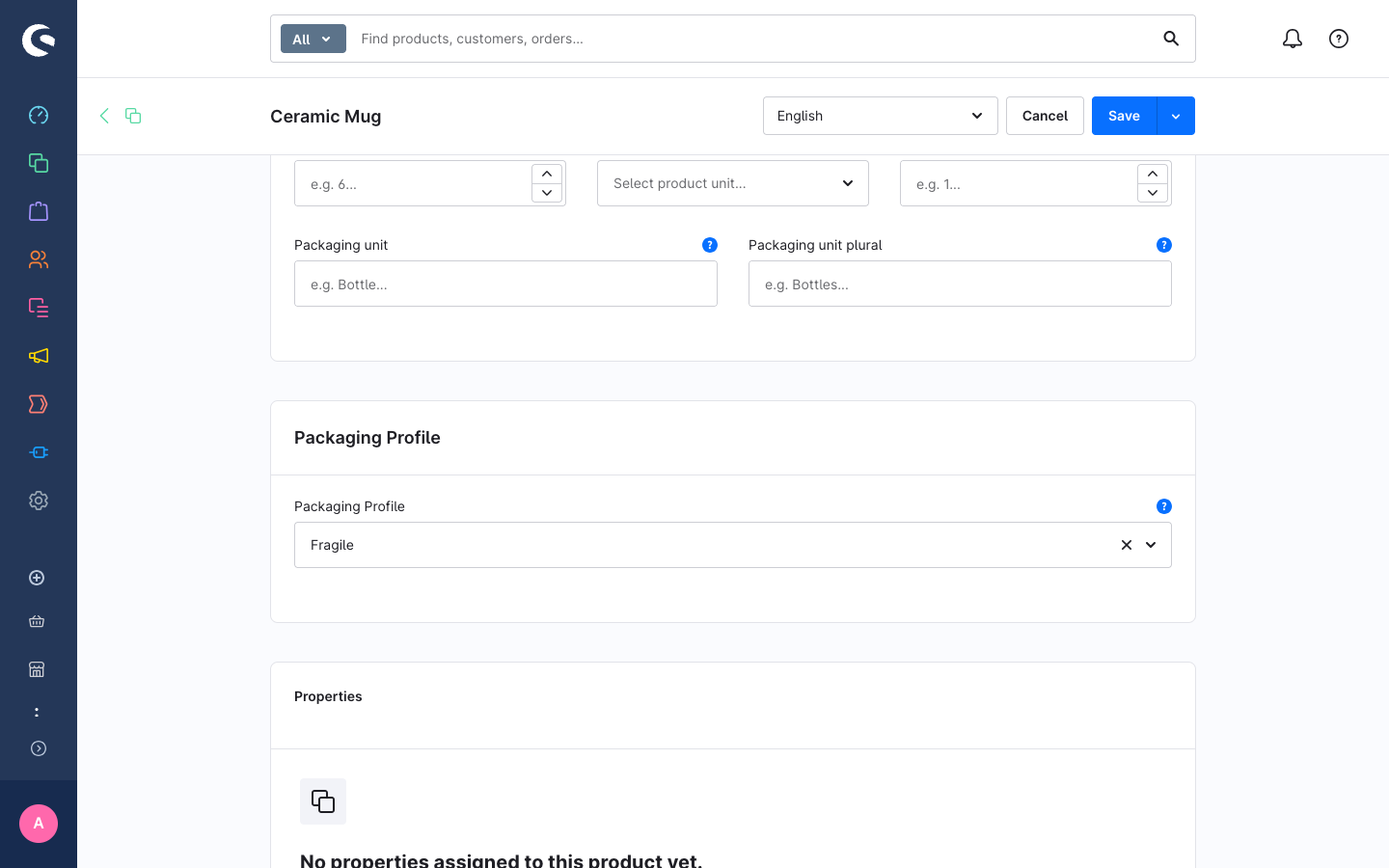
- Scroll to the Packaging Profile card (added by PackGuard).
- In the Packaging Profile dropdown, select the profile you want to apply.
- Click Save in the product smart-bar.
Variants: PackGuard first looks for an assignment on the variant. If none is found it falls back to the parent product's assignment. You only need to assign at the parent level unless variants have different packaging requirements.
Assign a profile in bulk
When you have many products to update, use bulk edit instead of opening each product individually.
- Go to Catalogues > Products.
- Tick the checkboxes next to the products you want to update (or tick the header checkbox to select the current page).
- Click Bulk edit in the action bar.
- In the bulk edit form, find the Packaging card.
- Enable the Change packaging profile toggle and select a profile from the dropdown.
- Click Apply changes.
The selected profile is written to all ticked products. Products that already had a profile assigned are overwritten.
Remove a profile assignment
Open the product, go to Specifications > Packaging Profile, clear the profile dropdown, and save. The product reverts to unconstrained behaviour; a variant falls back to its parent product's profile.
Check which products have profiles assigned
There is no dedicated product list filter for packaging profiles in the current version. To audit profile coverage, use the compliance dashboard under Orders > PackGuard > Dashboard — the Missing dimensions action item lists products that are skipped during volume calculation. Products without a profile are not flagged there; they simply use unconstrained suggestions.