
Create a bundle offer with a discount
Goal: show a "complete the set" offer on the product page — several products with a single Add bundle to cart button — and give a discount that applies automatically when all bundle products are in the cart.
This guide assumes you have completed Getting started.
1. Create the offer
- In Marketing > Ultimate Upsell, click Add offer in the Product page group.
- Name it (for example
Skincare routine bundle) and click Next until you reach the Where tab. - On Where, choose the position Next to the buy button — the bundle then renders directly under the buy button, where it converts best. (Below product description also works for larger layouts.)
2. Build the bundle content
On the Content tab:
- Assign a layout that contains an Upsell product row (or Upsell product slider) element.
- In What this offer shows, pick the bundle products — for example three products that belong together. These same products later define what the discount applies to.
- Optionally add a heading such as
Complete your set and save 15%, and a Countdown element if the layout has one.
3. Attach the discount
Open the Promotion tab and click Add discount.
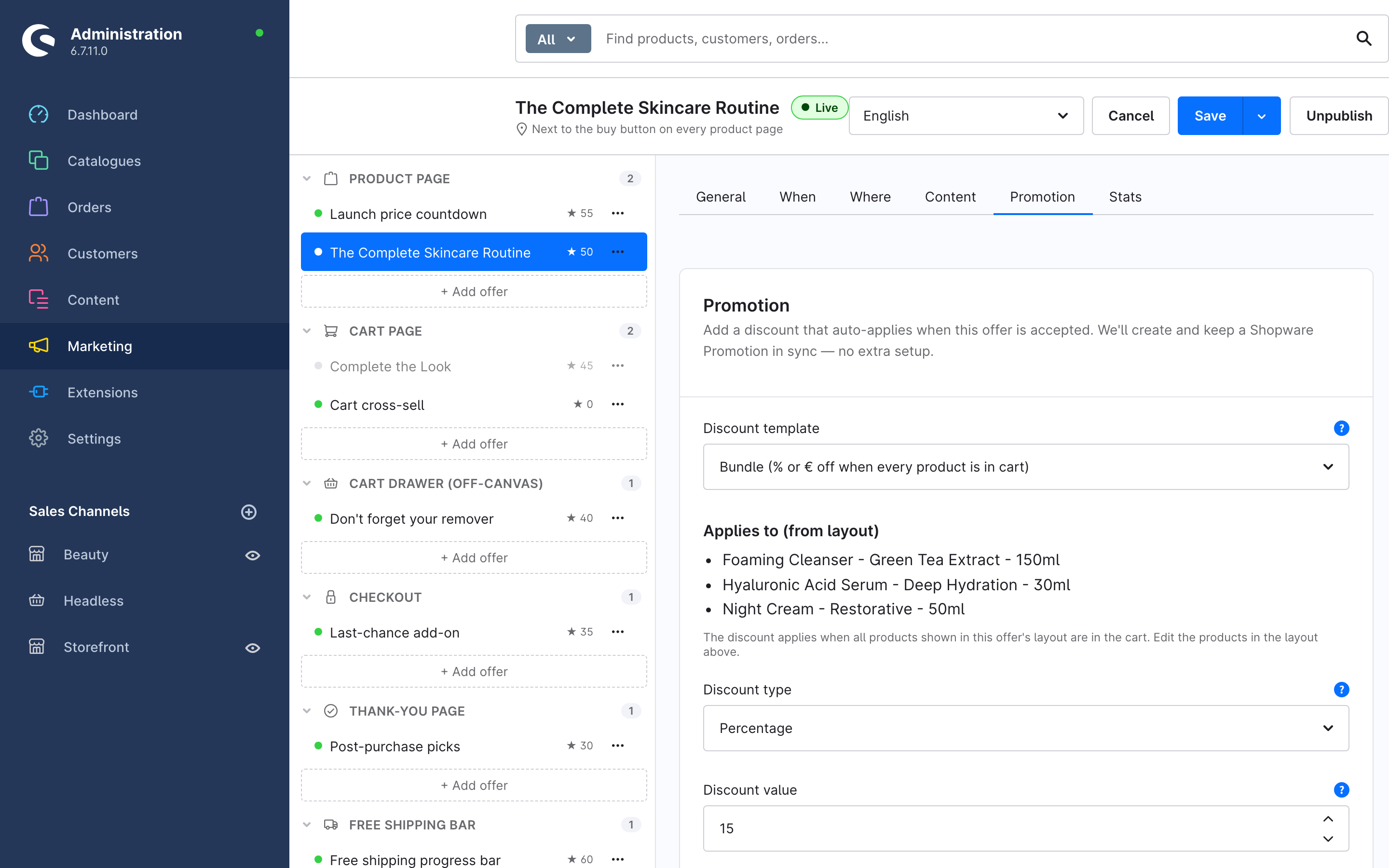
- Discount template —
Bundle (% or € off when every product is in cart)is the shipped template: the discount applies only when all products from the offer's layout are in the cart. - Applies to (from layout) lists those products, straight from the Content tab. To change the set, change the products in the layout — not here.
- Pick the Discount type (
PercentageorFixed amount) and the Discount value. - Optionally set Offer ends at — the discount stops applying after this date. Pair it with a countdown element in the layout so customers see the deadline.
4. Publish and verify
Click Publish, then open one of the bundle products in the storefront. Under the buy button you see the bundle: each product with its discounted price, the bundle total with savings, and one Add bundle to cart button.
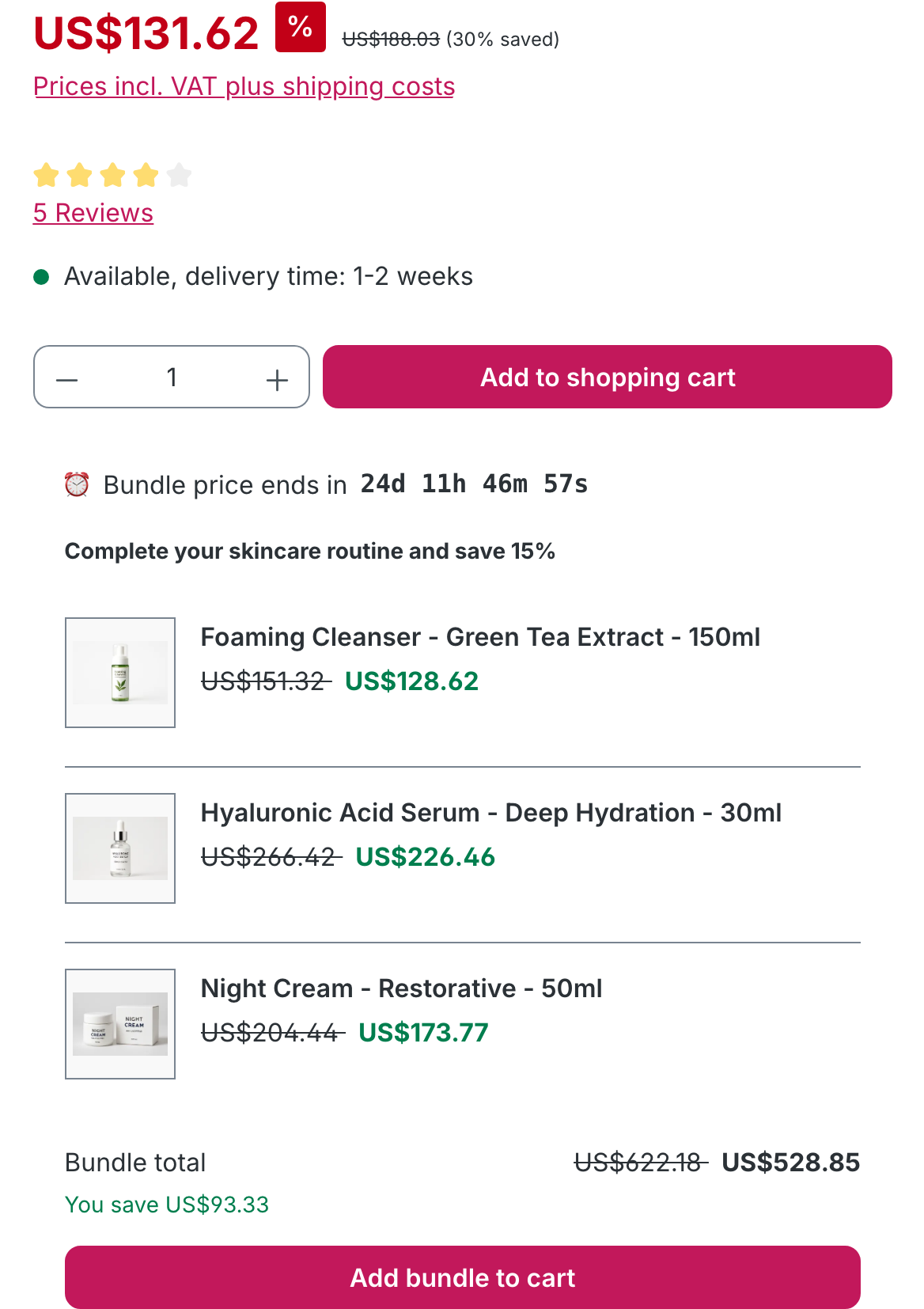
Clicking Add bundle to cart adds all products at once; Shopware's promotion engine applies the discount in the cart.
How the discount works under the hood
You never configure a Shopware promotion yourself. On every save the plugin creates and updates one managed promotion (named after your offer) with the right conditions. Your own promotions are untouched, and deleting the offer cleans the managed promotion up again. Details: Concepts — the promotion boundary.