
Getting started
In this tutorial you will install ReelCart, upload one reel, tag a product on it, and see it play — shoppable — on that product's page in your storefront. It takes about ten minutes. Nothing here branches: follow the steps in order.
1. Install and activate the plugin
- In the administration open Extensions > My extensions.
- Upload the ReelCart zip (or install it from the Shopware Store), then click Install.
- Switch the extension on (the toggle turns blue).
The plugin ships quiet defaults: nothing appears in your storefront until you create a reel and place it. A new entry ReelCart appears under Content in the admin menu.
2. Upload your first reel
Open Content > ReelCart. The module opens on the Analytics tab; switch to the Reels tab.
Click Upload reel.
Drop your MP4 on the upload area (or click Upload video and pick the file).
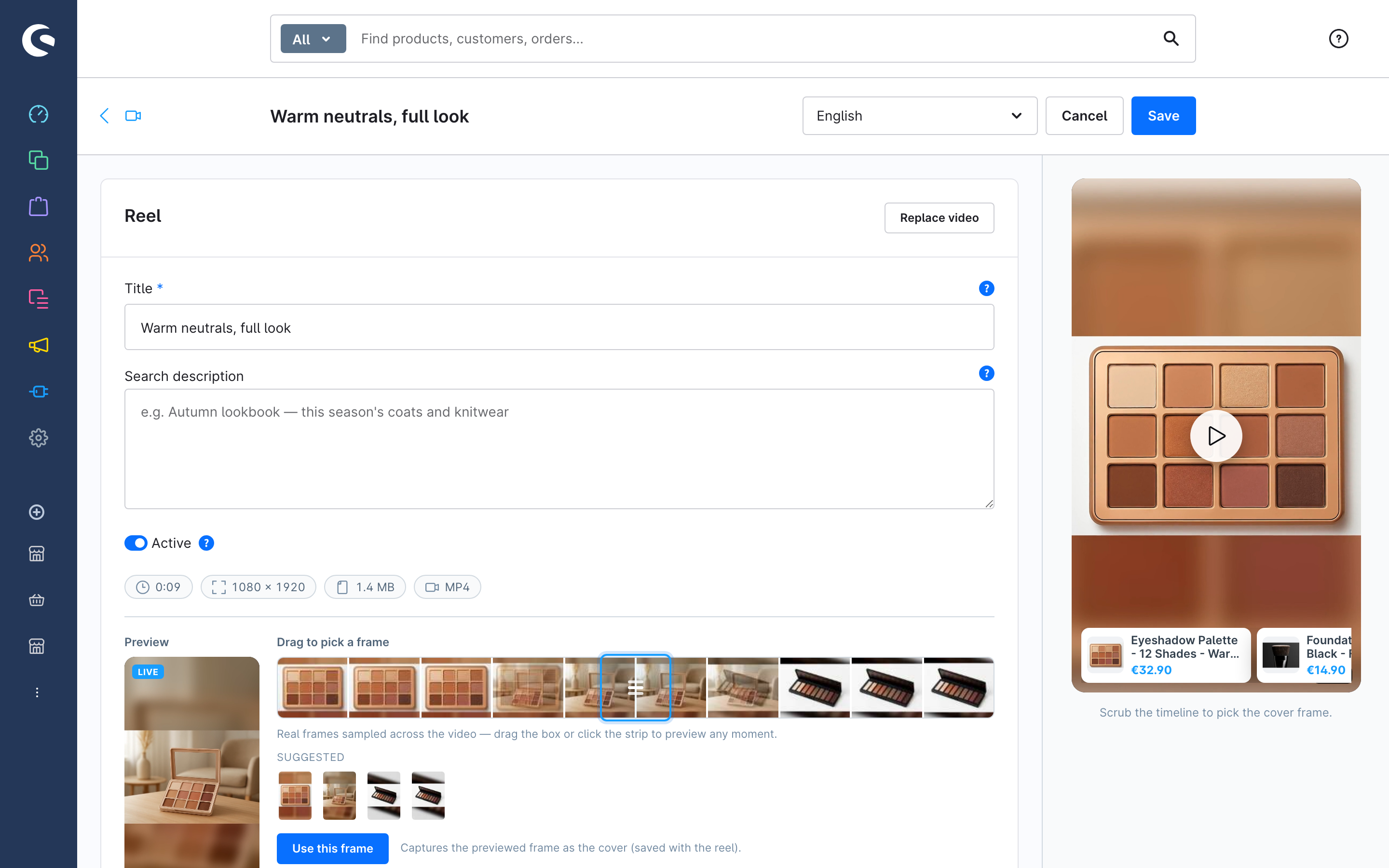
While the file uploads, the plugin reads its duration and size and captures a cover frame from the video — you will see the frame strip under the preview.
Enter a Title — an internal name such as
Jade roller ritual. Shoppers never see it.Leave Active switched on.
3. Tag the product
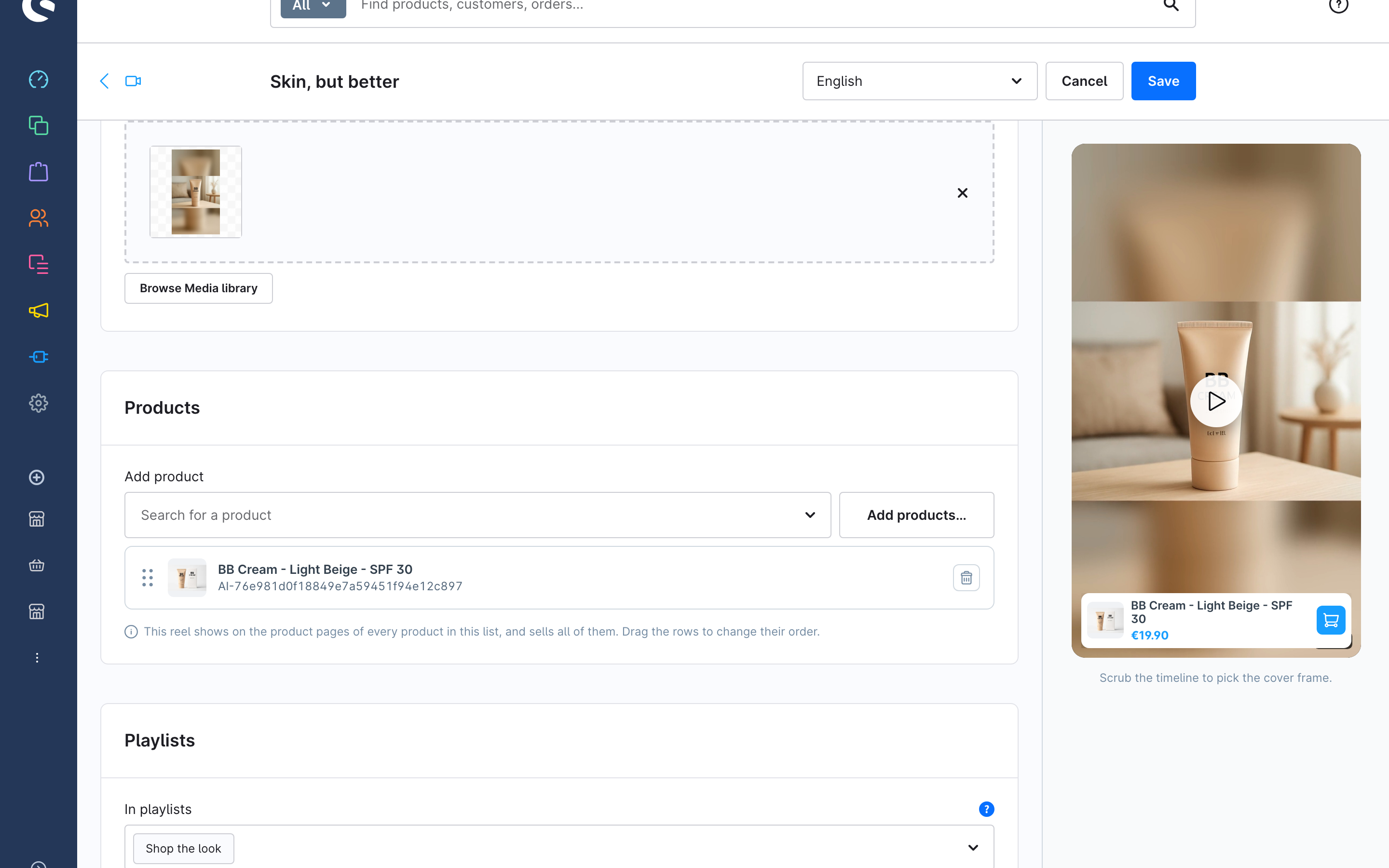
- Scroll to the Products card.
- In Add product, search for your product and select it. It appears as a row under the field.
- Click Save in the top-right corner.
That row does two things at once: the reel now sells that product (the shopper can add it to the cart inside the player), and the reel now shows on that product's detail page.
4. Show reels in the product gallery
The fastest way to put the reel in front of shoppers is to let it become a slide in the product's image gallery — no layout editing required.
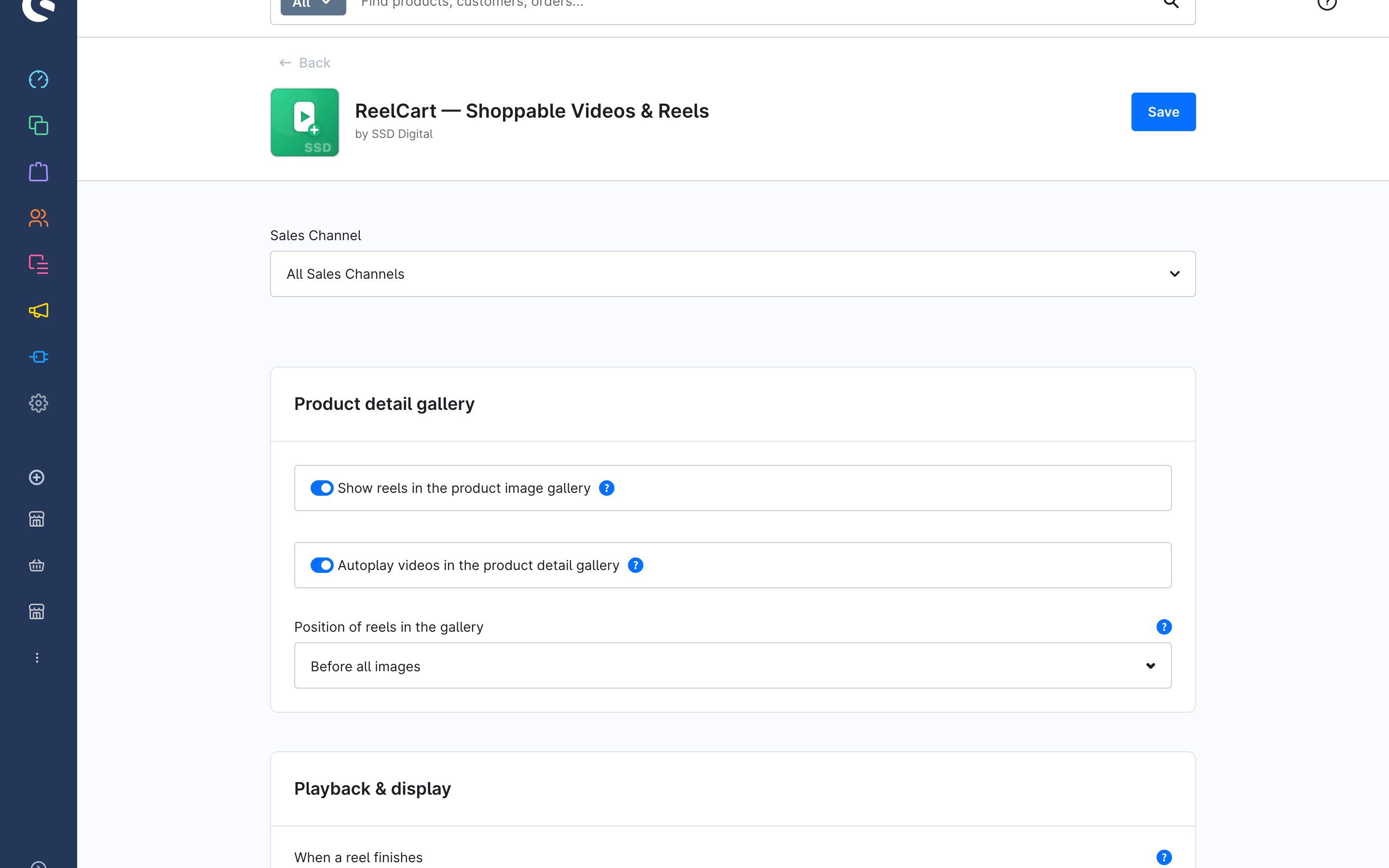
- Open Extensions > My extensions, find ReelCart and open its Configuration (the three-dot menu > Configure).
- In the Product detail gallery card, switch on Show reels in the product image gallery.
- Click Save.
5. See it in the storefront
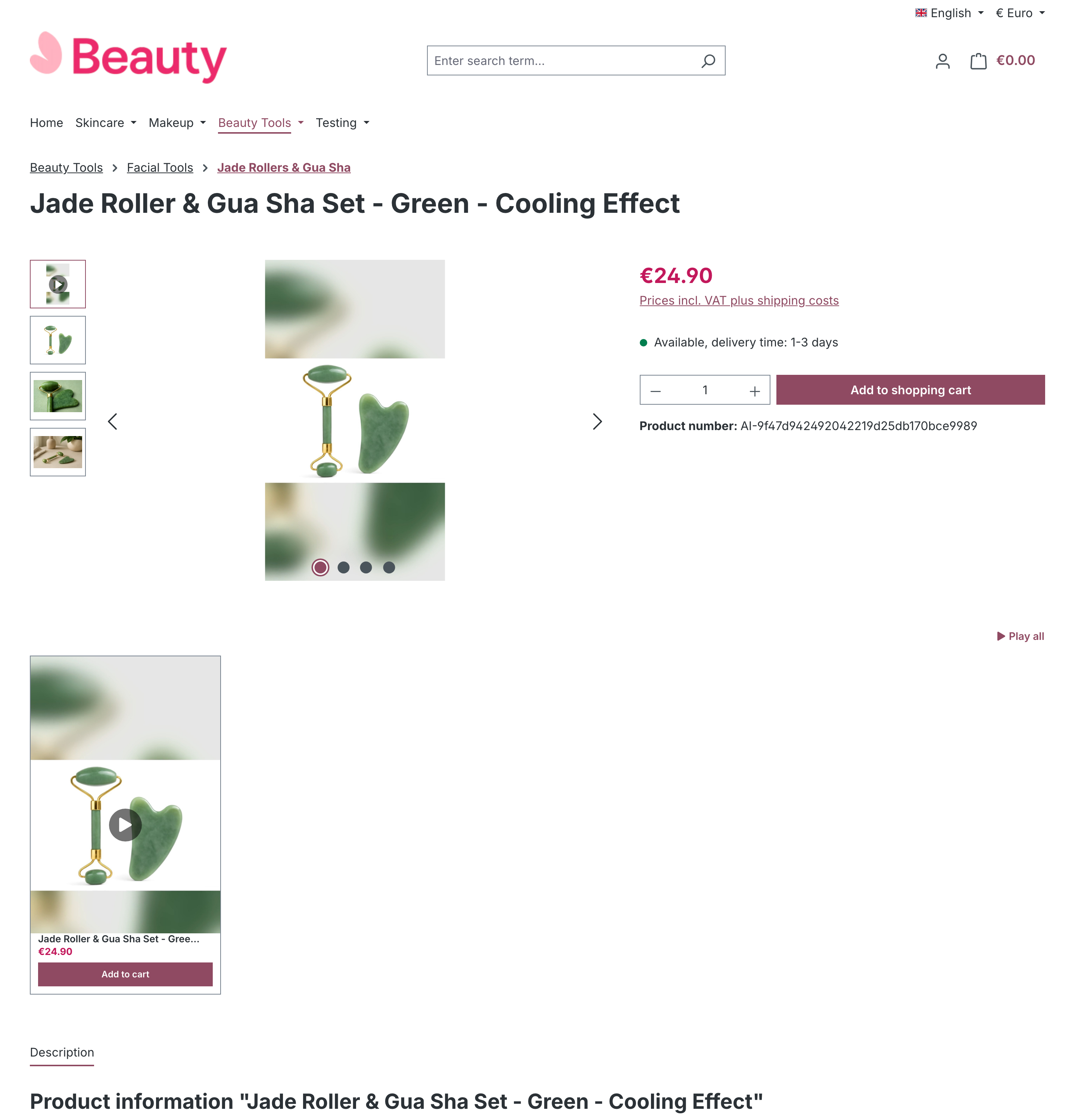
Open the product's detail page in your storefront. The reel is now a slide in the image gallery (after the cover image by default — the position is a setting). Click it: the video plays, and the product card under it has an Add to cart button.
Add the product to the cart from the player. Congratulations — that add-to-cart was attributed to the reel: once you switch on measurement, it will show up in the Analytics tab as reel revenue when the order is placed.
What you have built
- One reel, self-hosted in your media storage, with a cover frame.
- One reel product — the link that both sells the product and places the reel on its page.
- Gallery injection switched on shop-wide.
Where to go next
- Put reels on the homepage or a category as a carousel, grid or stories rail: Place reels with the Shoppable Video element.
- No video yet? Build one from the product's own photos: Generate a reel from product images.
- Switch on Measure reel performance in the configuration and read the numbers: Measure reel performance.