
Getting started
This tutorial takes you from a freshly installed plugin to a live loyalty rule that customers can see in your storefront. You will turn on the points feature, create one "way to earn" rule, and confirm it works. It takes about ten minutes.
By the end you'll have a rule that gives customers points for placing an order, and you'll see the earn badge appear in your storefront.
Before you start
- Reward Engine is installed and activated (Extensions → My extensions).
- You have at least one product and one customer account you can test with.
1. Turn on the points feature
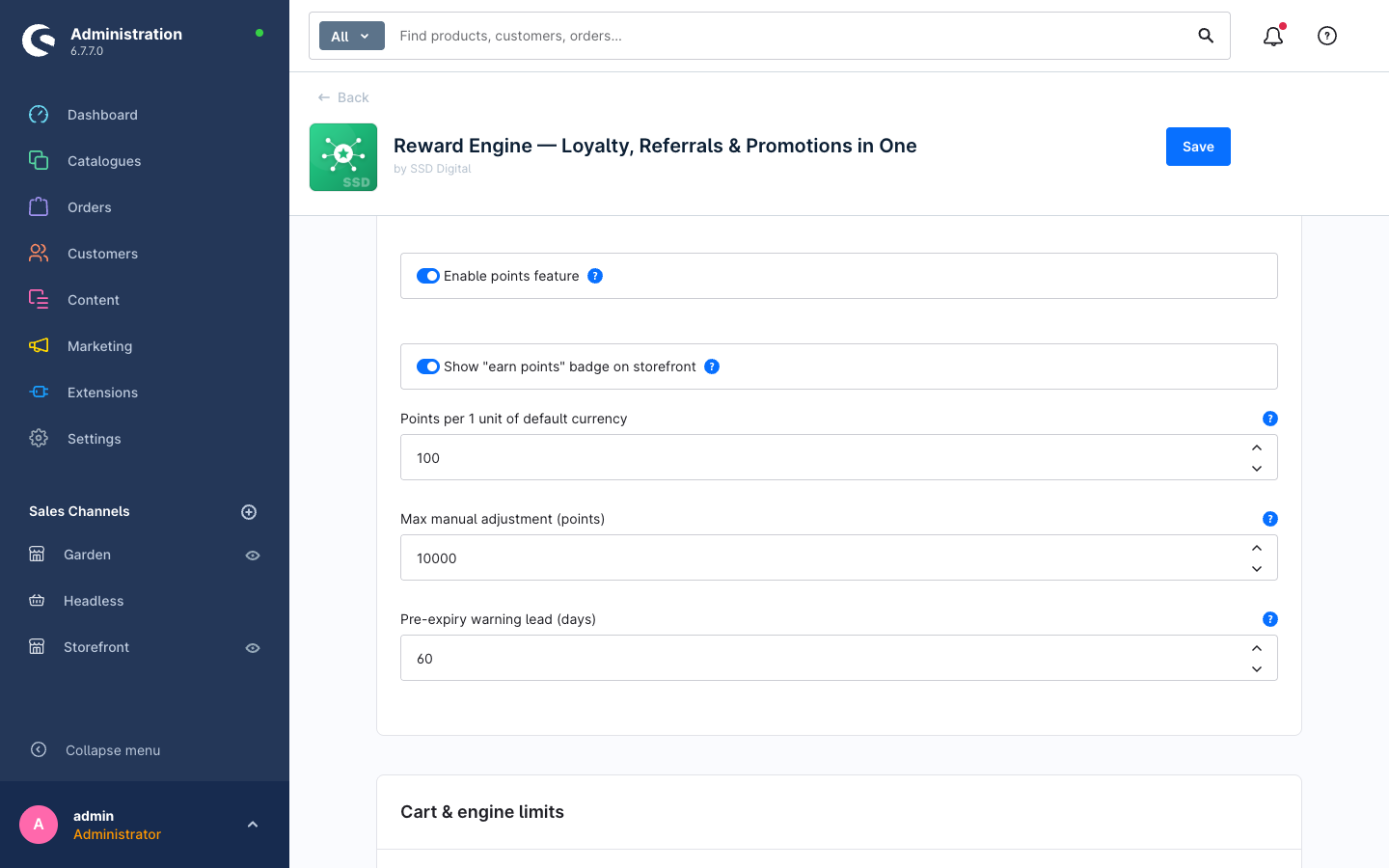
- In the Administration, go to Settings → Extensions → Reward Engine.
- Confirm Enable points feature is on.
- Leave Show "earn points" badge on storefront on so customers can see what they'll earn.
- Save.
2. Open the Reward Engine
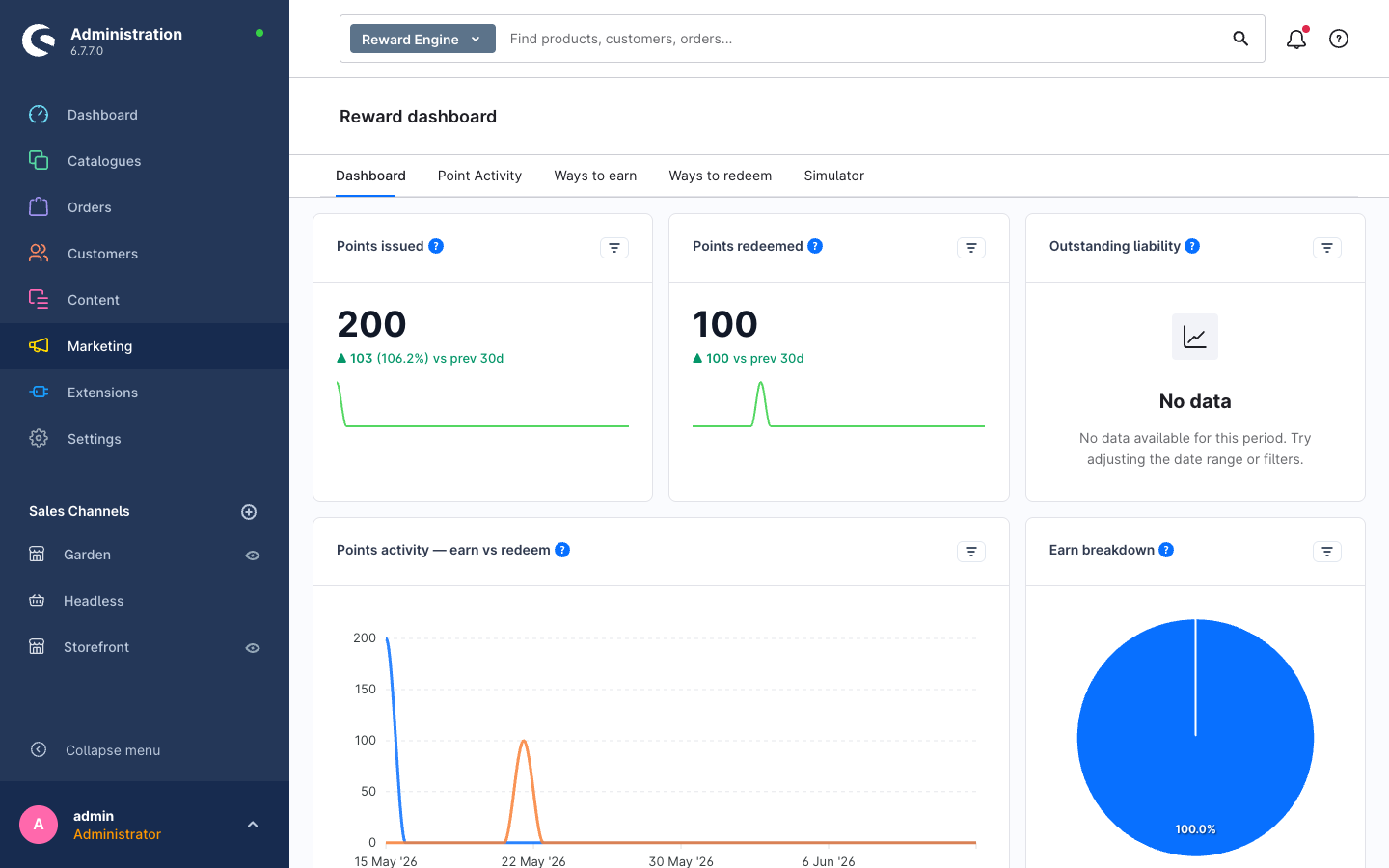
In the main menu, go to Marketing → Reward Engine. The module has five tabs: Dashboard, Point Activity, Ways to earn, Ways to redeem, and Simulator.
The first time you open the Dashboard, click Initialize dashboard to create its charts (Points issued, Points redeemed, Outstanding liability, and more). You only do this once.
3. Create your first "way to earn"
- Open Ways to earn and click Create earn rule.
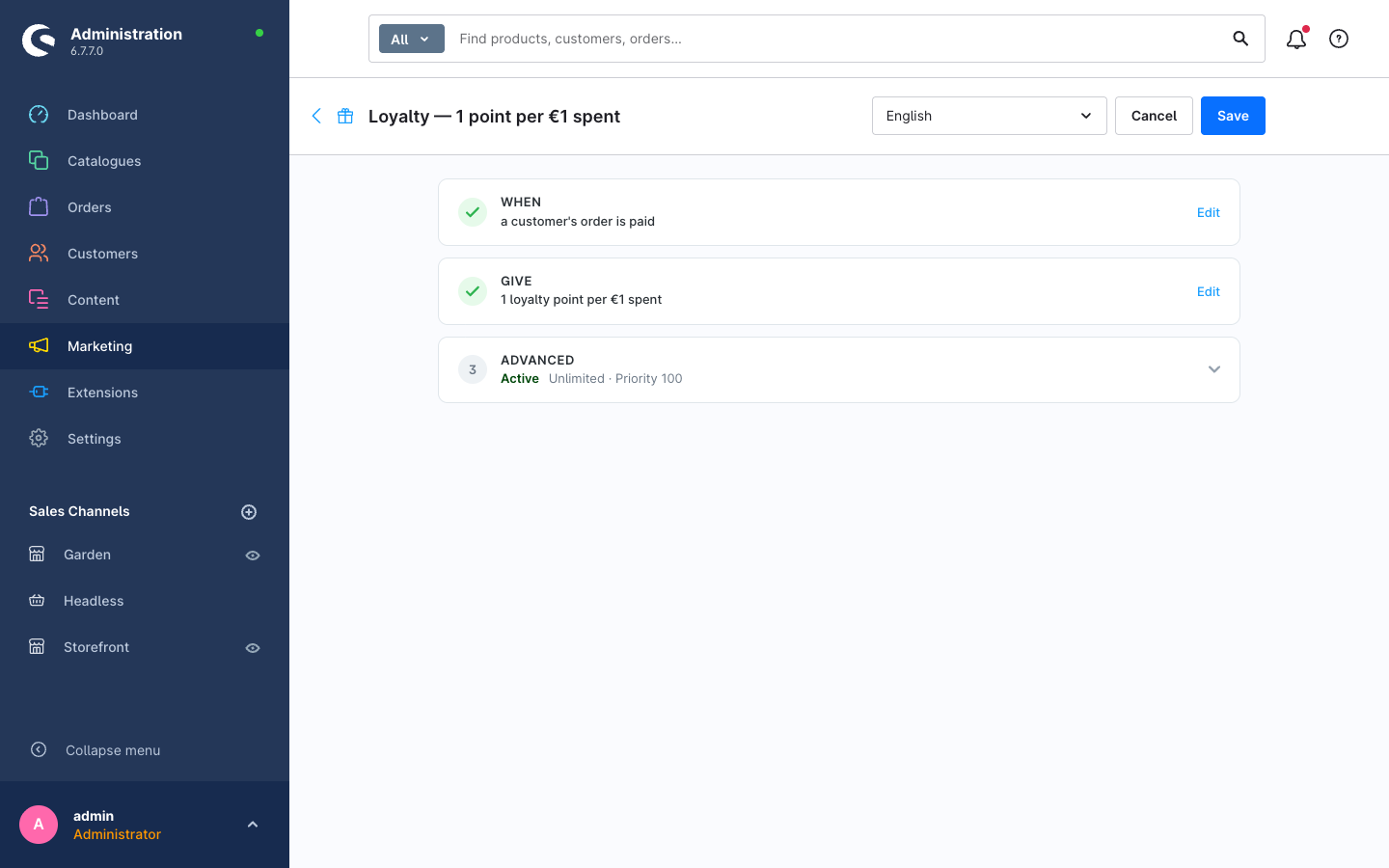
- Give it a name, e.g. Loyalty — 1 point per €1 spent.
- A rule is built from three steps. Open each and Edit it:
- WHEN — choose the trigger, e.g. a customer's order is paid.
- GIVE — choose the reward, e.g. 1 loyalty point per €1 spent. The Live preview here shows what a sample order would earn.
- ADVANCED — set the rule Active, choose any limits/schedule, set the priority, and (optionally) add a Rule Builder condition to restrict who matches. Leave it unlimited for now.
- Save.
4. See it in the storefront
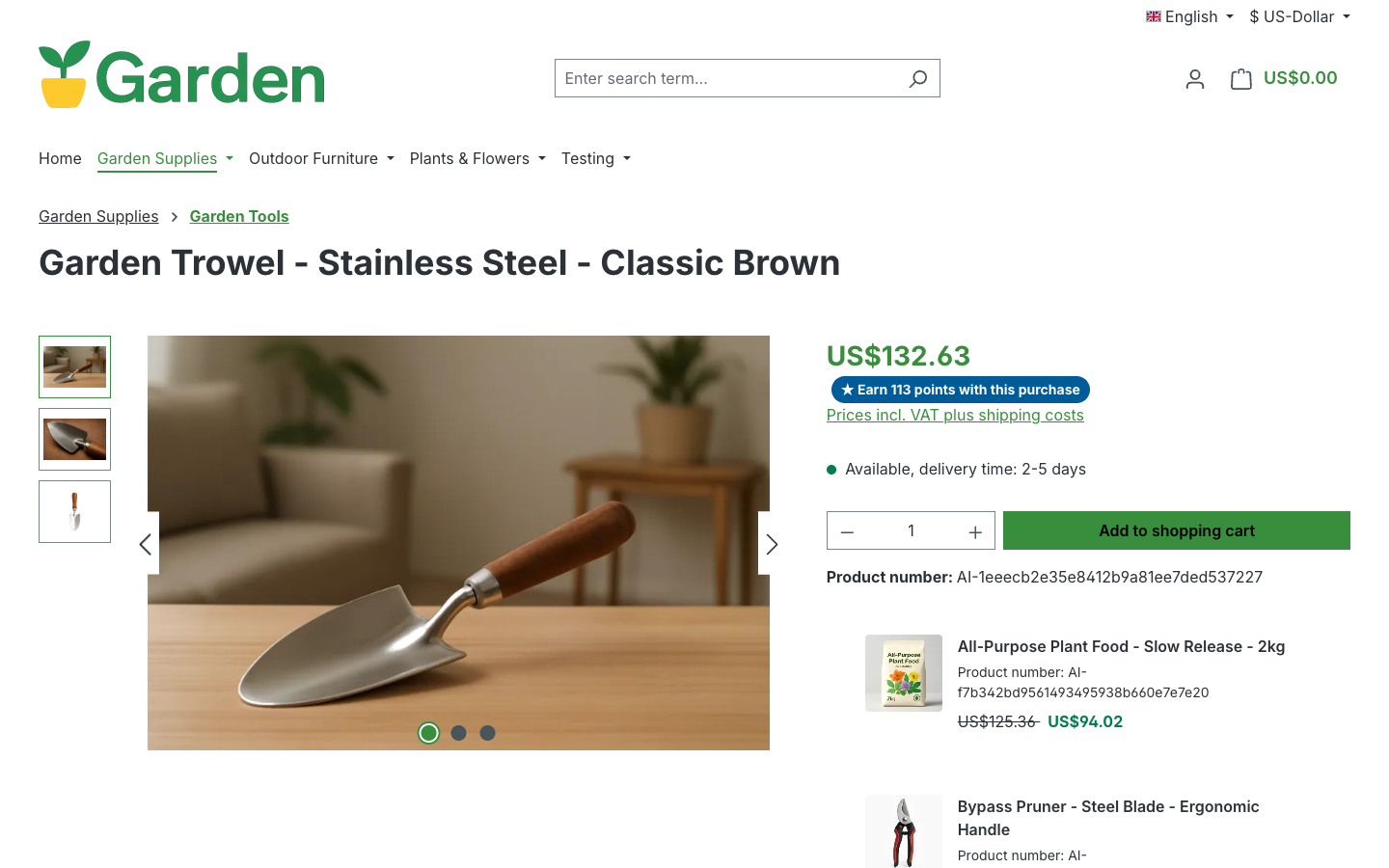
With Show "earn points" badge on storefront enabled, a logged-in customer can see how many points a product will earn them on its detail page. The badge appears for products covered by an active earn rule; anonymous visitors see a sign-in call-to-action instead.
5. Confirm a point movement
- Place a test order as a customer the rule matches.
- Back in Marketing → Reward Engine → Point Activity, you'll see the earned points recorded in the ledger, and the Dashboard reflects the movement in Points issued and Outstanding liability.
That's a complete loop: a rule awards points, the customer sees the offer, and every movement is logged.
Next steps
- Let customers spend those points: Create a way to redeem points.
- Test rules safely before publishing: Test a rule with the Simulator.
- Understand the moving parts: Core concepts.