Upload a reel and tag products
Goal: add a video to the reel library, give it a good cover frame, and decide which products it sells and where it shows. This guide assumes you have done the Getting started tutorial.
Upload or pick the video
- Open Content > ReelCart > Reels and click Upload reel.
- Either drop an MP4 on the upload area, or click Choose from Media library to reuse a video already in your media storage.
The upload is checked against the Maximum upload size and Maximum reel duration limits from the configuration. A file over the limit is rejected with a message that names the limit; compress or trim the file, or raise the limit.
Portrait 9:16 works best — every storefront layout is built around a phone-shaped frame. Landscape videos play, but letterboxed.
To swap the video later, click Replace video in the Reel card. Products, playlists and the title stay.
Pick the cover frame
The cover is what shoppers see before the reel plays (in tiles, stories circles and the floating bubble) and what is used for social link previews.
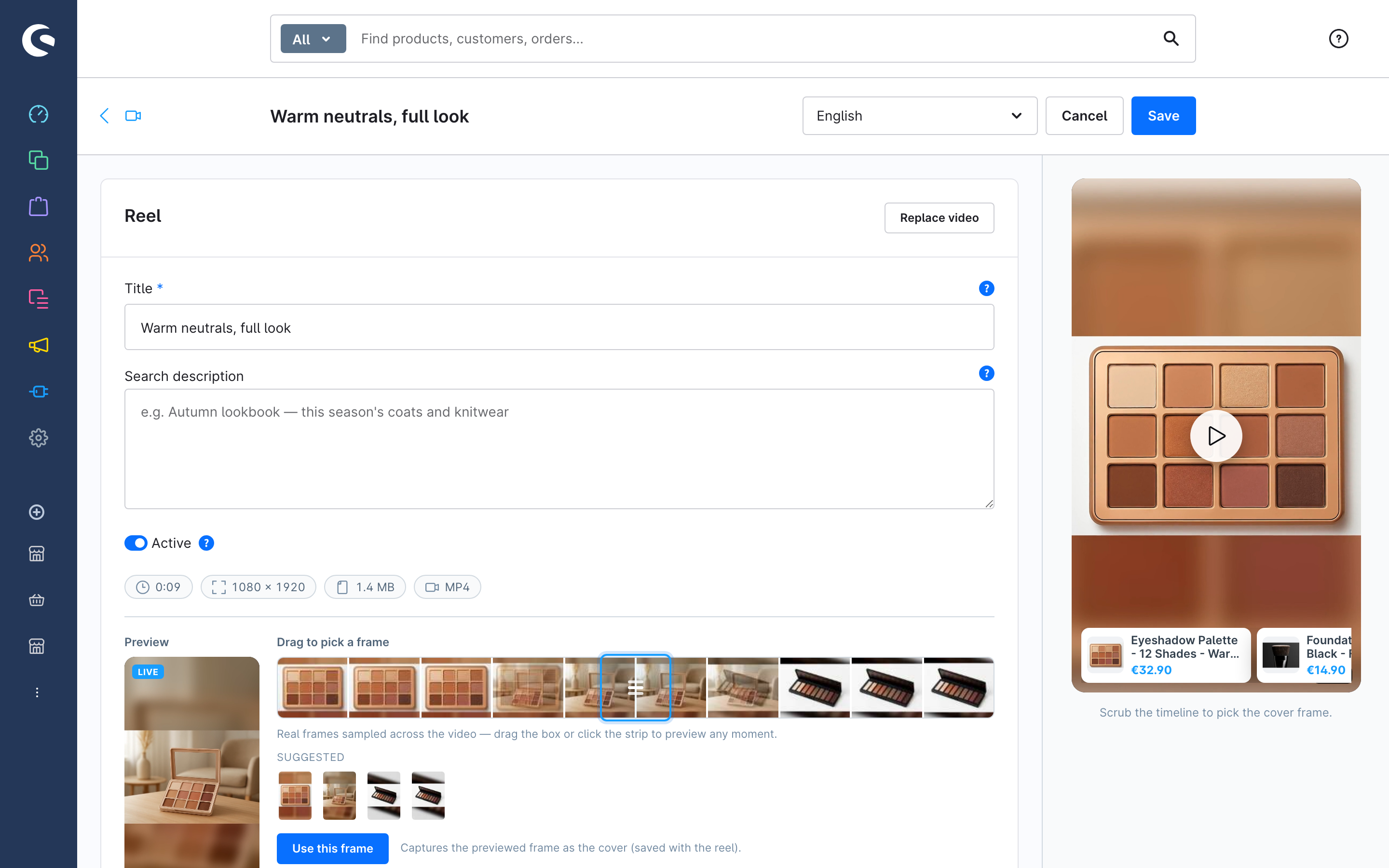
- After upload the plugin samples real frames across the video into a frame strip. Drag the box or click anywhere on the strip to preview a moment; click Use this frame to capture it.
- Suggested shows a few frames the plugin rates as good candidates — one click each.
- To use your own artwork instead, drop an image under or upload a custom cover, or Browse Media library.
A captured frame is marked not saved yet until you click Save.
Write the search description (optional)
Search description is a short, translatable line used in Google video results and by AI search when Add video structured data is switched on in the configuration. Leave it empty to fall back to the title.
Tag the products
In the Products card:
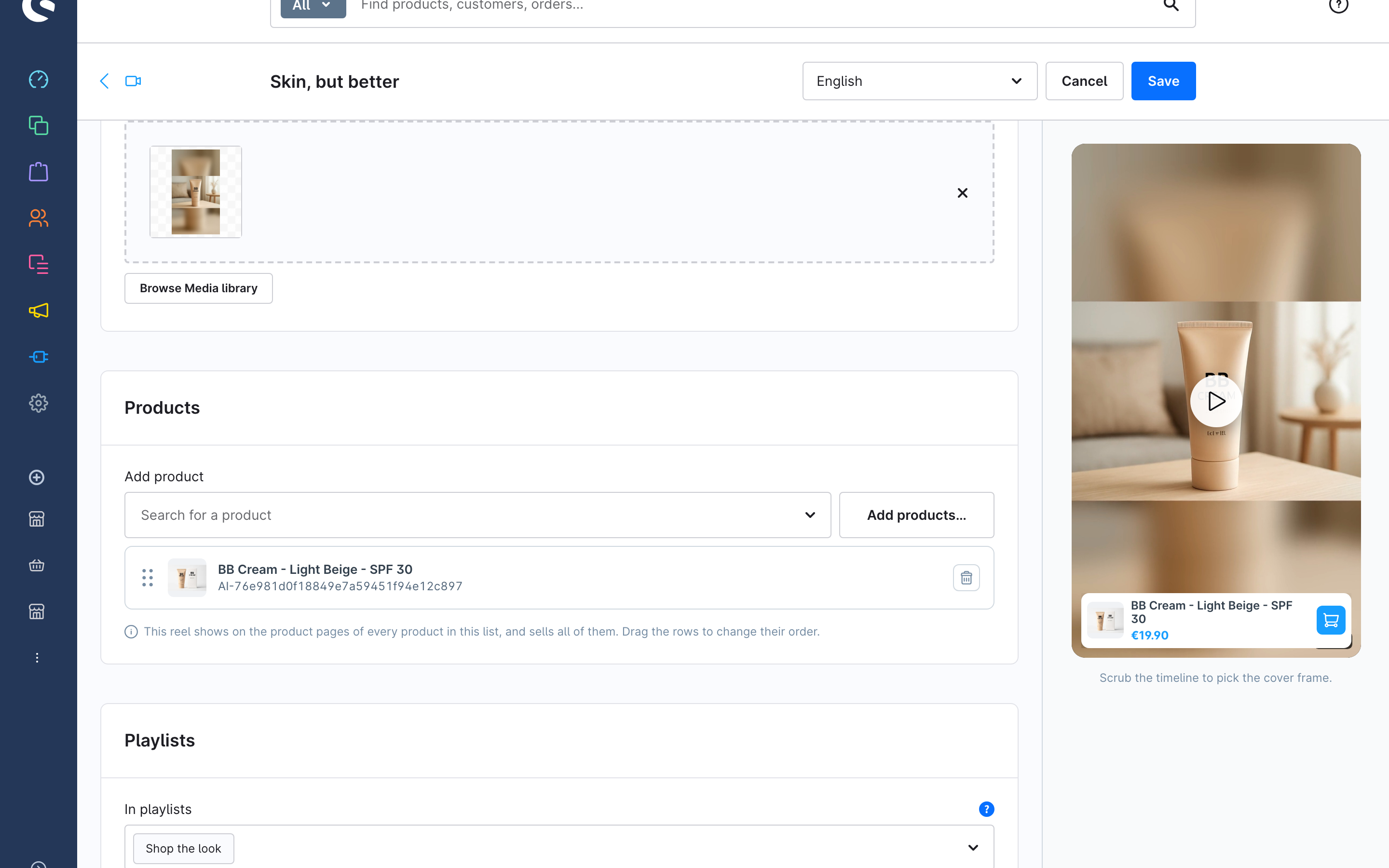
- Search a product in Add product and select it — or click Add products… to add several at once from a product list, a category, or a dynamic product group.
- Drag the rows to order them. The shopper sees the products in this order.
- Remove a row with the bin icon.
Only main products and standalone products are listed; variants are chosen by the shopper inside the player, and every variant page inherits its parent's reels.
This one list decides two things at once:
- What the reel sells. With exactly one product, the tile shows a compact product bar with an add-to-cart button. With several, the fullscreen viewer opens on a picker.
- Where the reel shows. The reel appears on the detail page of every product in the list — in the gallery (when gallery injection is on) and via the automatic sources of the Shoppable Video element.
Add it to playlists (optional)
The Playlists card lets you add this reel to existing playlists without leaving the page; it is appended at the end of each one. See Group reels into a playlist.
Activate and save
Active off keeps the reel as a draft: it never appears in the storefront, in any layout. Switch it on and click Save.
Manage the library
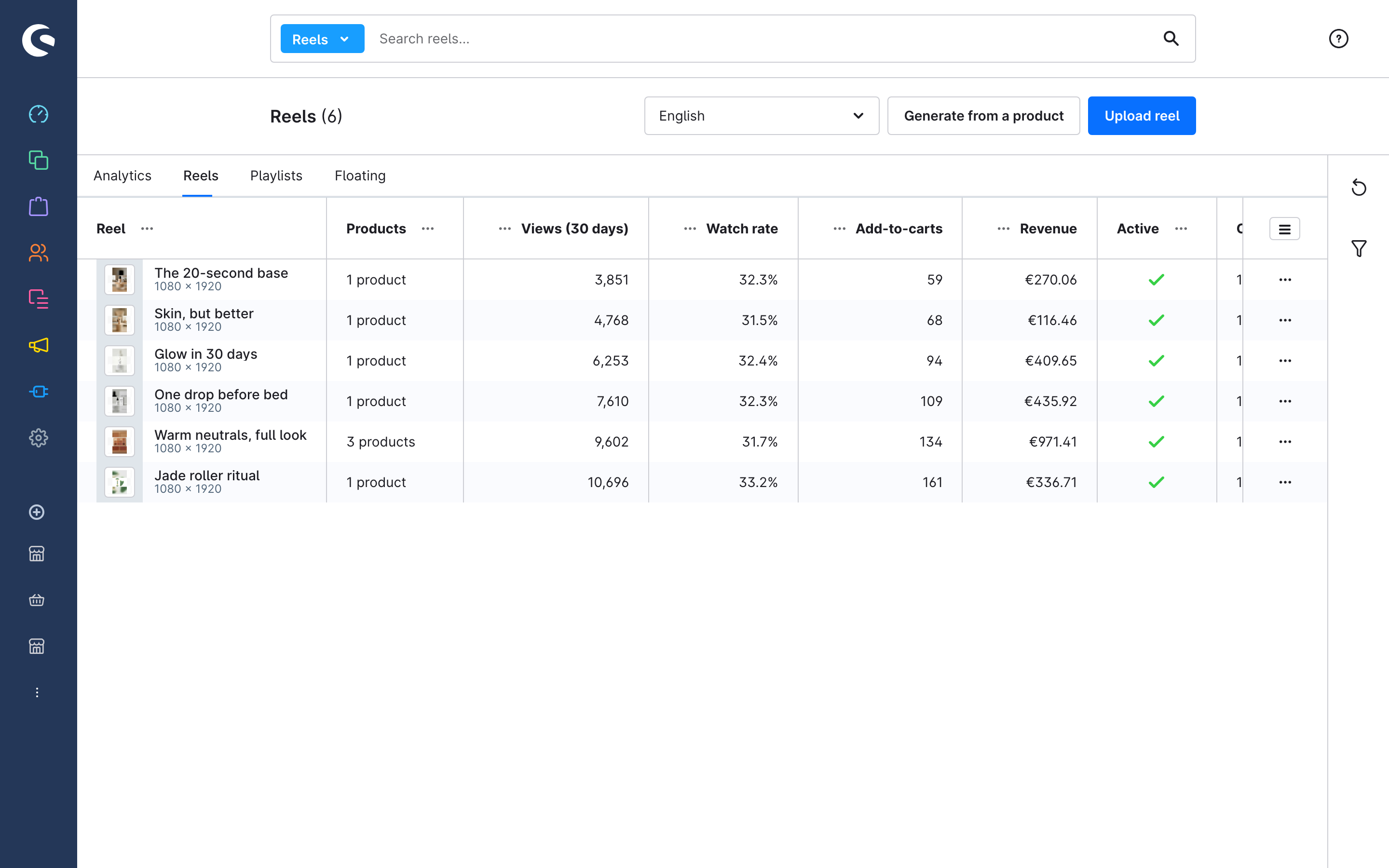
The Reels list shows every reel with its product count, 30-day views, watch rate, add-to-carts and revenue. Use the filter sidebar to narrow by status, by product, by "has products", or by creation date. Title and Active can be edited inline.