
Run a floating reel
Goal: show a small video bubble in a corner of the storefront that expands into a shoppable player — a campaign that follows the shopper across pages.
Create it
- Open Content > ReelCart > Floating and click Add floating reel.
- General: give it a Name (internal), a Priority, and choose Show again after closing — how long the bubble stays hidden for a shopper who closed it: next session, after 1 day, after 7 days, or never again.
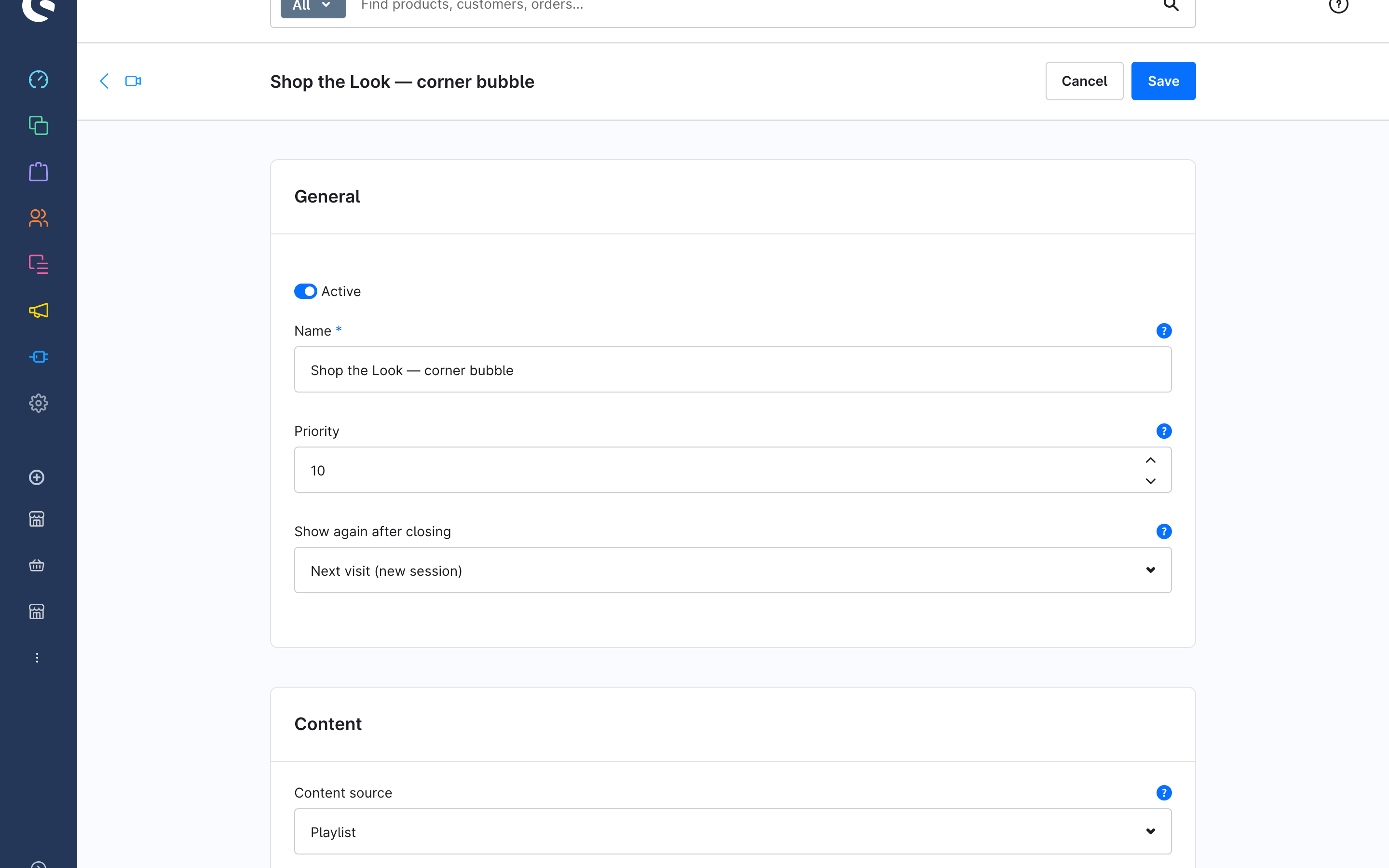
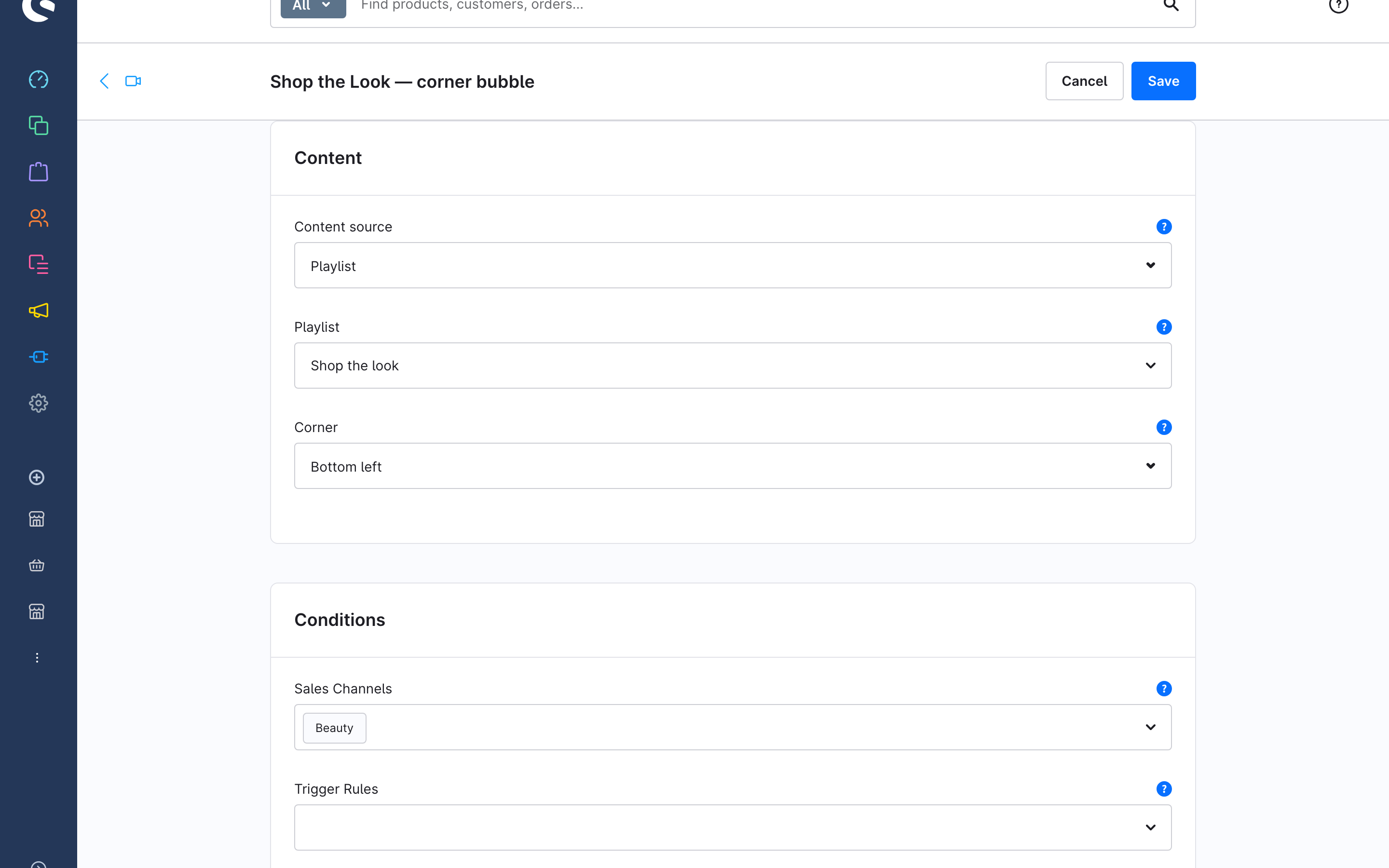
Content: pick the Content source:
- Specific reel — one reel.
- Playlist — rotates through the playlist's reels across page views.
- Viewed product's reels — the reels of the product being viewed; appears only on product detail pages and hides on products without reels.
Then choose the Corner. Bottom left is the default because most themes put scroll-to-top and chat widgets bottom right.
Conditions:
- Sales Channels — empty means all.
- Trigger Rules — Rule Builder rules that must all match; empty means always.
- Targeting Mode: Page Restriction — pick standard page types (Home, Product Detail, Category/Listing, Search, Landing Page); refine with Category Restriction (includes subcategories) and Product Restriction (includes variants). Empty means every page.
- Targeting Mode: Custom URL — relative paths or wildcards, e.g.
/summer-saleor/landing/*.
Checkout and account pages never show a floating reel.
Switch Active on and Save.
How the bubble behaves
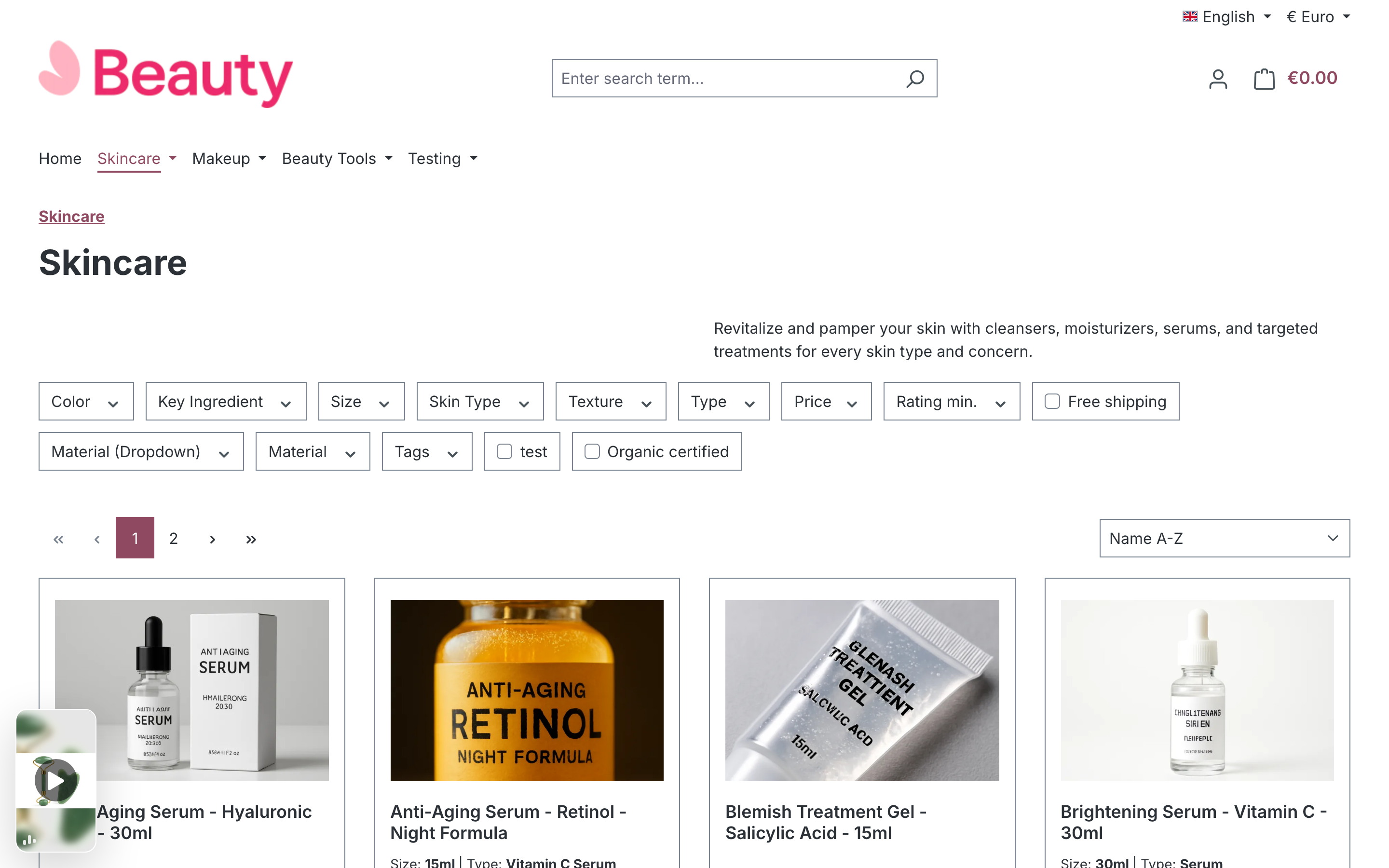
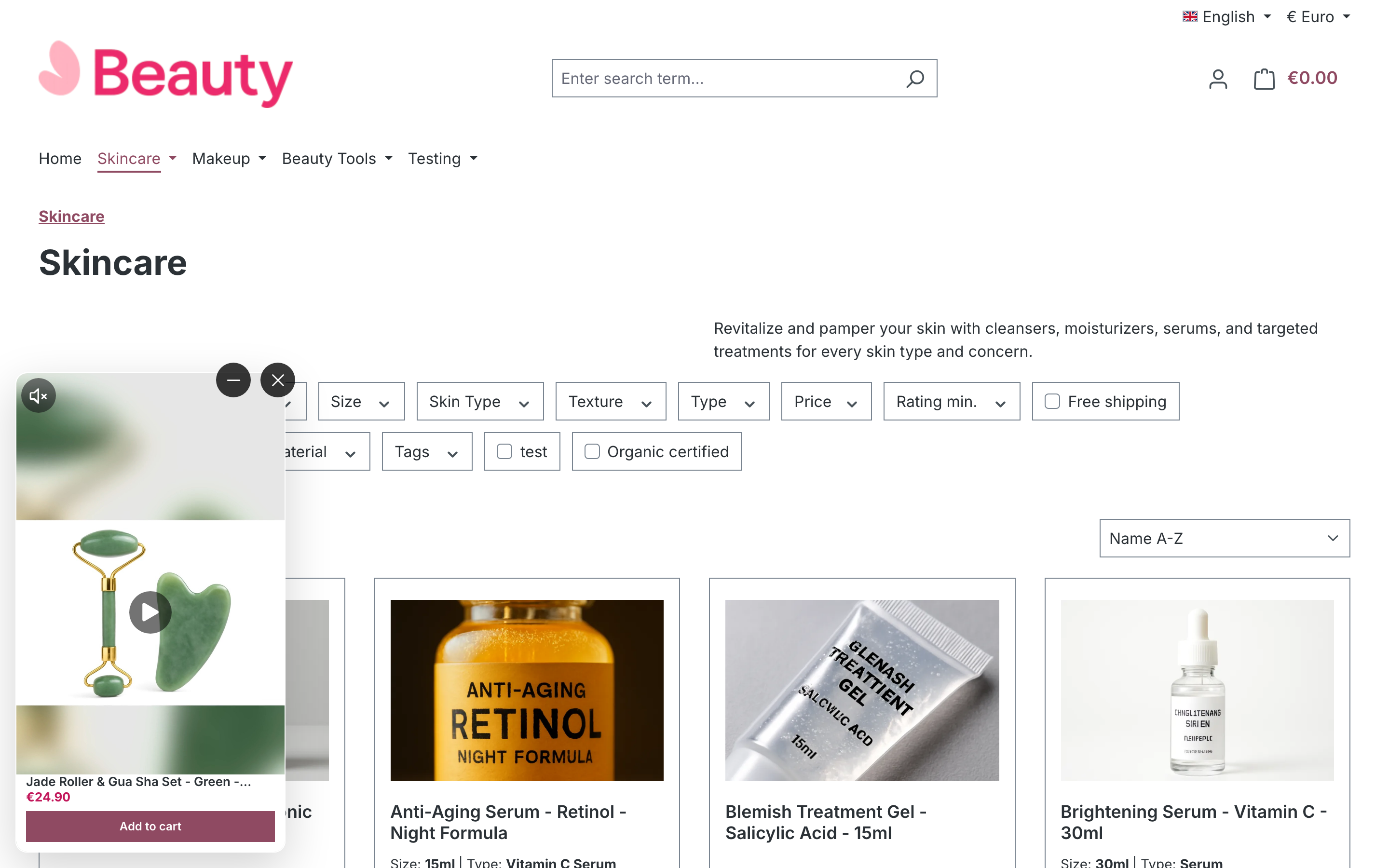
The bubble sits in the chosen corner, collapsed. Tapping it expands a compact player with the product bar and add-to-cart; the shopper can mute, minimise or close it. On small screens the expanded player fills the screen. The floating reel has no fullscreen viewer — its product link goes to the product page.
When several match
Only one floating reel shows per page: the highest-priority entry whose sales channel, rules and targeting match and that has a reel to play. If the winner has nothing to play (for example a product source on a product without reels), the next one takes over.