
How to manage your block library
This guide covers finding, duplicating, editing, and deleting blocks in the CMS Block Builder library.
Prerequisites
- CMS Block Builder is installed and at least one block exists.
- Admin role with appropriate permissions (see Configuration reference — ACL permissions).
Navigating the block library
Go to Content > CMS Block Builder. The list page shows all your custom blocks with:
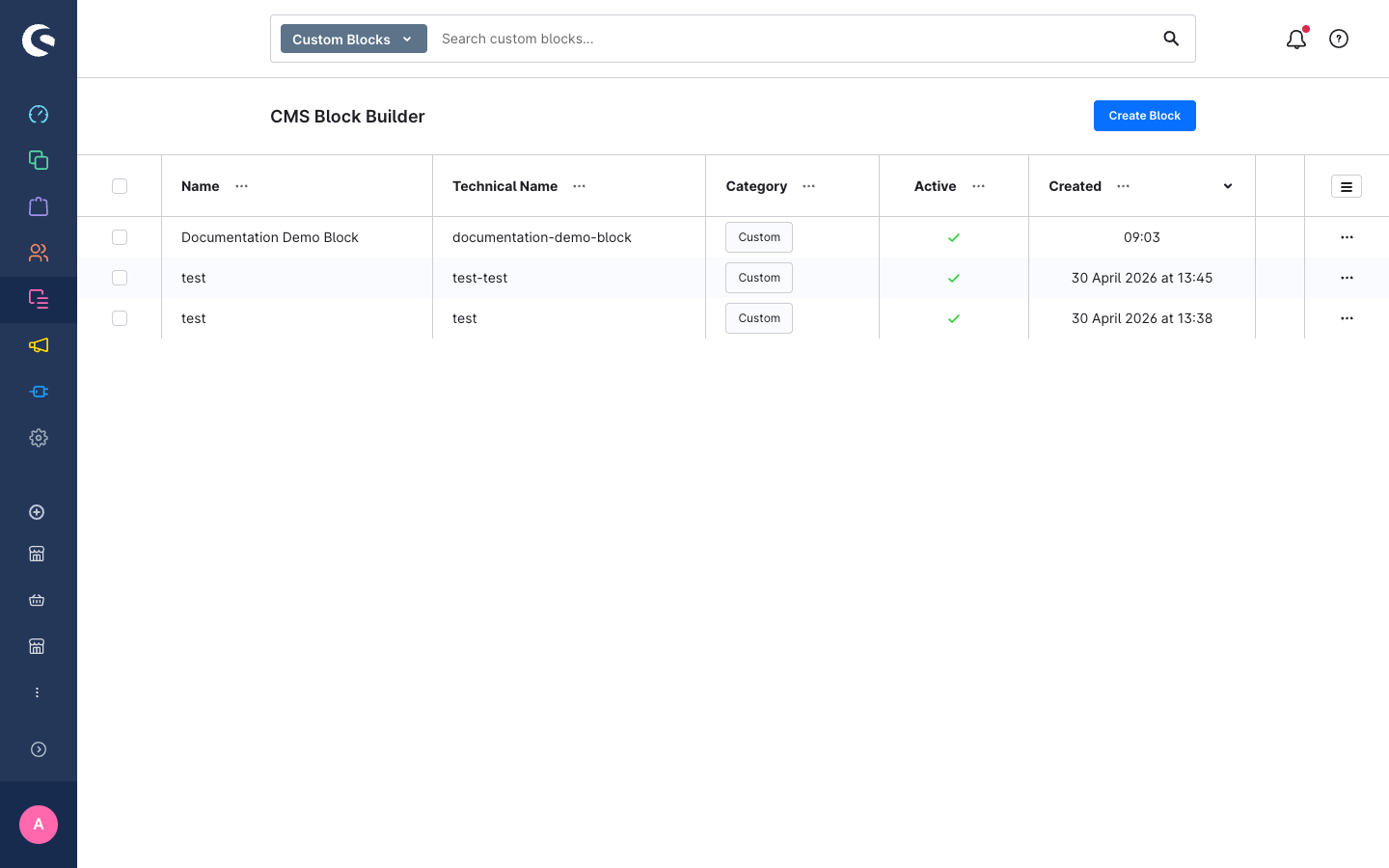
| Column | Description |
|---|---|
| Name | The human-readable block label |
| Technical Name | The unique internal identifier |
| Category | The category badge (where it appears in the block picker) |
| Active | Whether the block is published to the block picker |
| Created | When the block was first saved |
Use the search bar to filter by name. Click any column header to change the sort order.
Editing a block
Click a block name (or the Edit action in the context menu) to open the detail view.
You can change:
- Block Name, Category, Position, and Active status at any time.
- Element types assigned to slots (swap by hovering over the area and clicking the swap icon).
- Tablet and Mobile layout positions.
What you cannot change after creation:
- Technical Name — it is the identifier baked into every CMS page that uses this block.
- Grid structure (areas, rows) — locked once the block is placed on one or more pages. Create a new block if you need a different layout.
When the block is in use on one or more pages, a yellow warning banner in the Block Composer shows how many pages use it. Structural changes are disabled for those blocks.
Duplicating a block
Use duplication to create a new block based on an existing layout:
- In the list view, open the context menu (three-dot icon) for a block.
- Click Duplicate.
A copy is created immediately with:
- A new technical name (
<original>-copy-<timestamp>). - The label
<original> (Copy). - The same category, grid layout, and slot assignments as the original.
- Active status set to inactive — so it does not appear in the picker until you review and activate it.
Open the duplicate, adjust its name and technical name, make any layout changes, and save.
Activating and deactivating blocks
The Active toggle on the block detail page controls whether the block appears in the Shopping Experiences block picker.
- Active = on — block appears in the picker and can be added to pages.
- Active = off — block is hidden from the picker. Existing pages that already use this block are not affected; the block continues to render in the storefront.
Deleting a block
- In the list view, open the context menu for the block and click Delete.
- The plugin checks whether the block is currently used on any CMS page.
If the block is in use: A warning dialog lists the affected CMS pages with direct links. Deletion is blocked. Remove the block from those pages first, then delete.
If the block is not in use: A confirmation dialog asks you to confirm. Click Delete to proceed. The block is permanently removed.
Deletion is permanent and cannot be undone. Make sure the block is removed from all pages before deleting.
Changing the sort order in the block picker
The Position field on the block detail page controls the order within a category in the block picker. Lower numbers appear first. Set it to the desired order and save.