
Show reels in the product gallery and as the product cover
Goal: get reels onto product detail pages without editing layouts, and optionally make a reel's video the product's main image everywhere.
Reels as gallery slides
With Show reels in the product image gallery switched on in the configuration, every product's reels become slides in its image gallery — the products a reel lists are where it appears.
- Position of reels in the gallery — before all images, after the cover image (recommended, so the product photo stays first), or after all images.
- Autoplay videos in the product detail gallery — video slides start muted and looping instead of on click. This affects every video slide in the gallery, not only reels.
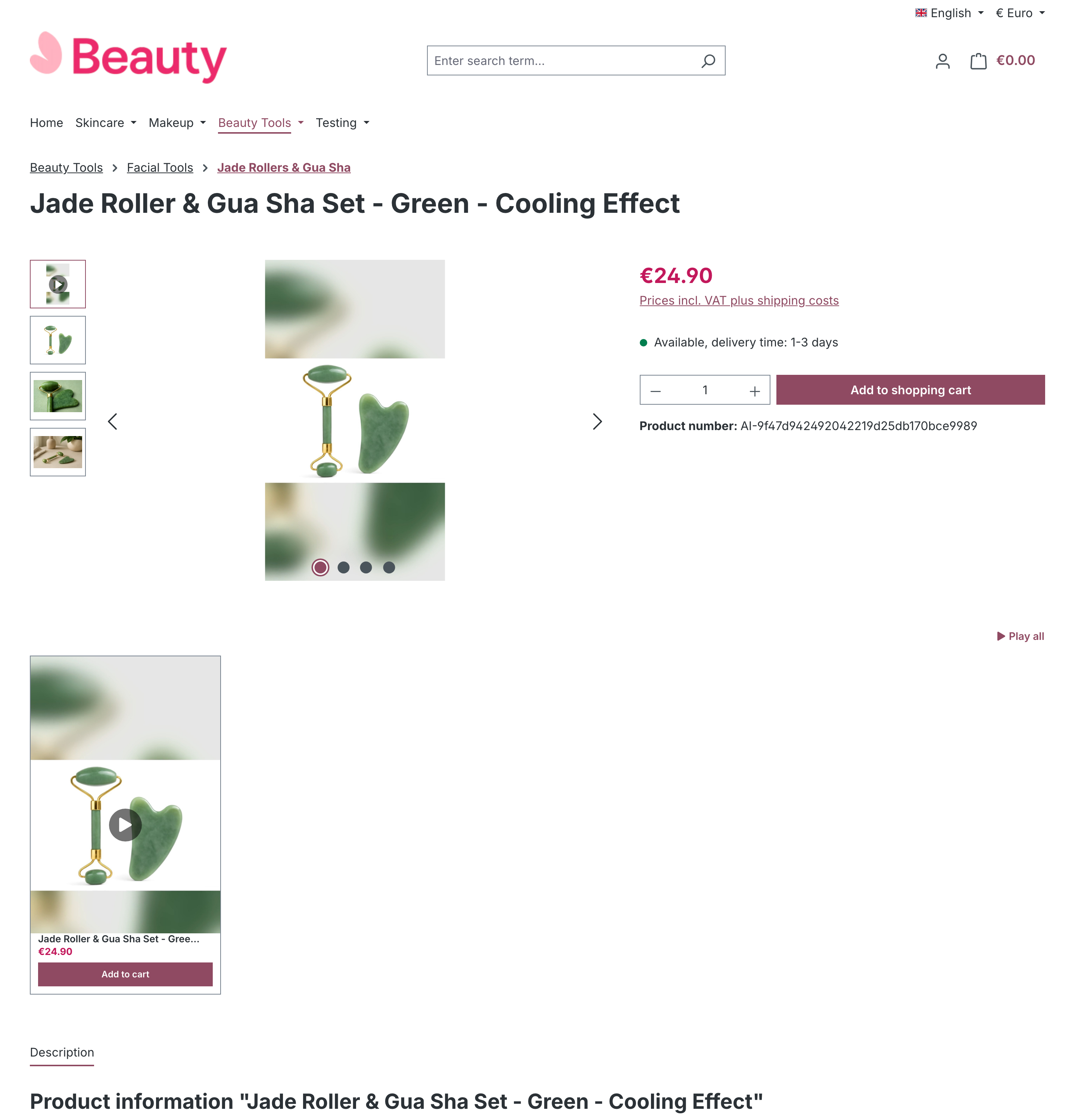
Manage a product's reels from the product
Open the product in Catalogues > Products. On the General tab, the Reels card lists every reel shown on this page:
- Show a reel on this product — search and select a reel to add it here. This is the same relation as adding the product on the reel: the reel now also sells this product.
- Remove — takes the reel off this page (and the product off the reel).
- A pill shows how many reels are currently shown.
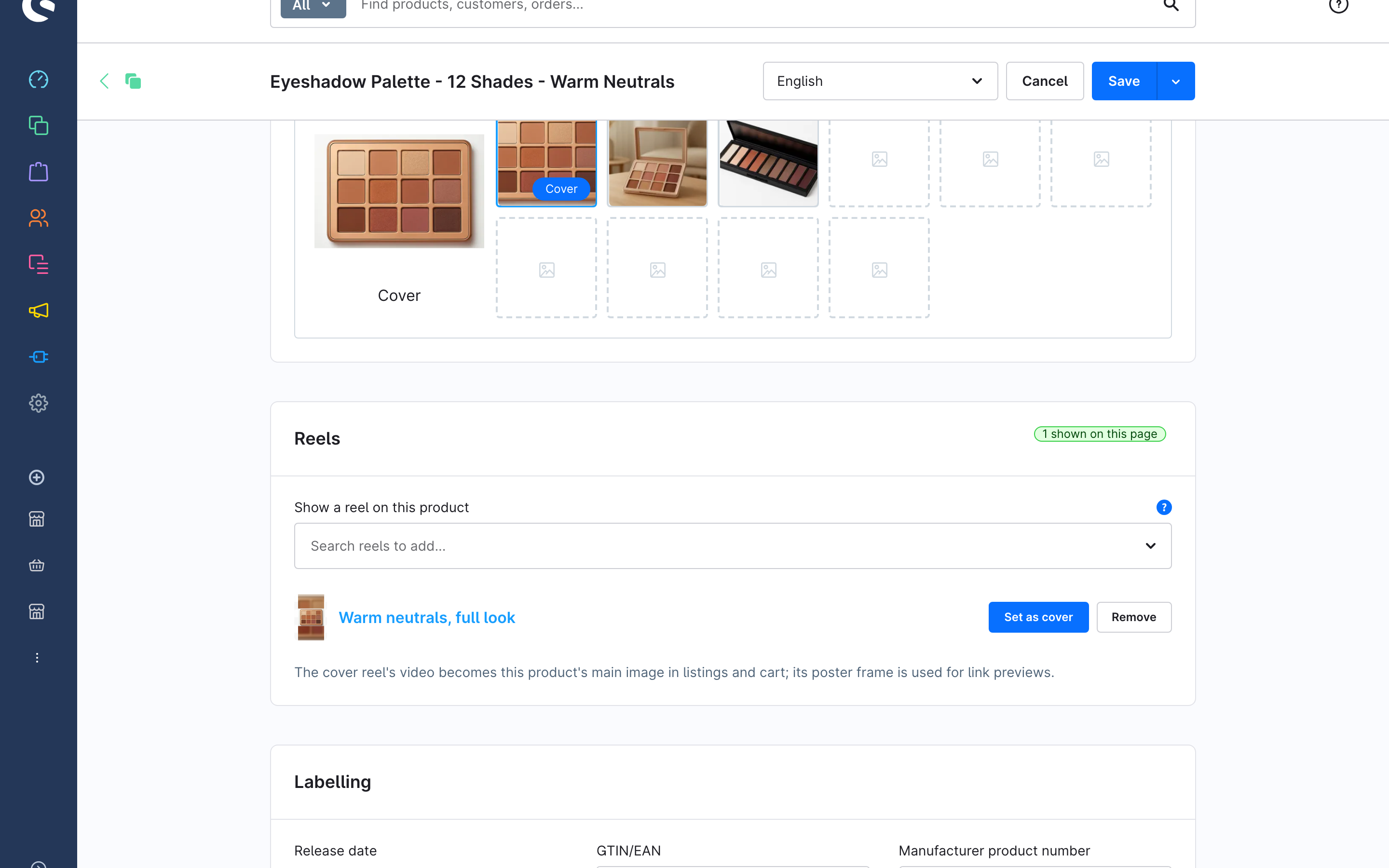
If gallery injection is off shop-wide, the card says so and links to the plugin settings; a draft reel is marked Draft and will not show until activated.
Set a reel as the product cover
Set as cover on a reel row makes that reel the product's cover reel:
- The reel's video becomes the product's main image wherever a cover appears — listings, cart, feeds.
- The reel's poster frame is used for social and SEO link previews.
- One cover reel per main product; variants inherit it.
Remove as cover restores the exact previous cover image. If someone changed the cover manually in the meantime, the plugin leaves that manual choice untouched and simply stops tracking the reel as cover.