
Target a tile
Targeting decides where a tile may appear, on which pages, and for whom. All of it lives on the Placement tab.
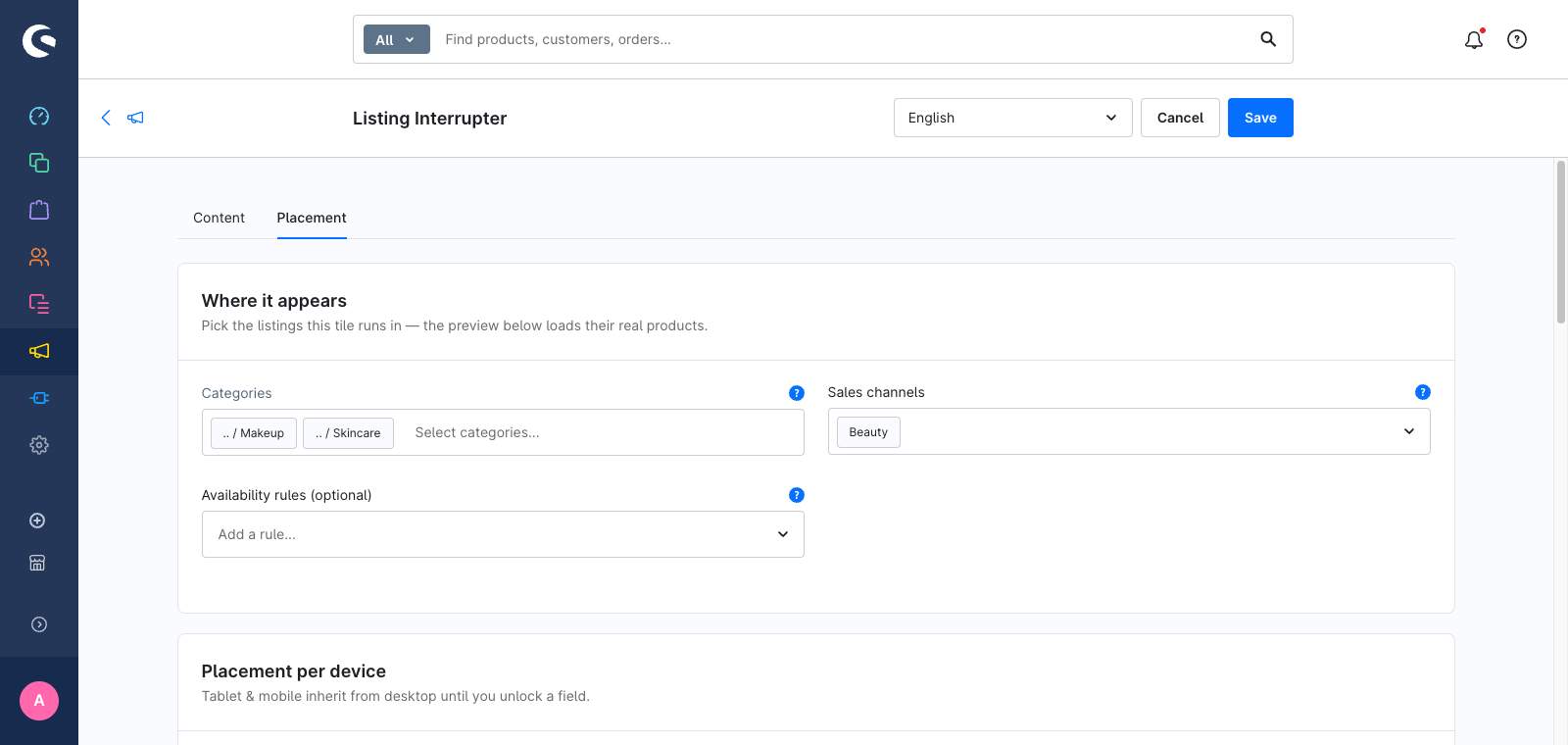
Choose the listings
In the Where it appears card:
- Categories — check the categories whose listings may show the tile. Exactly the checked categories apply; a tile with no category is never shown.
- Sales channels — add every channel the tile should run in. A tile with no sales channel is never shown either.
Both lists are additive: check three categories and two channels, and the tile is eligible on those three listings in both channels.
Category listing pages are the plugin's scope. Search-result and manufacturer pages are not covered.
Limit a tile to certain pages
Show on pages — in the rail's Pages group on the same tab — accepts four forms:
| You type | The tile appears on |
|---|---|
| (empty) | every page |
2 | page 2 only |
1-5 | pages 1 to 5 |
3- | page 3 and everything after it |
-2 | pages 1 and 2 |
New tiles start on page 1. The setting applies to every device.
An invalid entry is rejected on save with Not a valid page range.
Show a tile only to some shoppers
Availability rules takes any number of rules from Shopware's own Rule Builder (Settings → Rules).
The relationship is AND: the tile appears only when every attached rule matches. Adding another rule narrows the audience further. If you need "A or B", build that as an OR inside a single rule's condition tree.
Leave the field empty and the tile shows to everyone.
Rules cover the things you would expect an audience filter to cover — customer group, logged-in state, cart value, line items, and so on.
Schedule a campaign
There is no separate from/until field on a tile, and you do not need one: Shopware's native date range rule condition is the scheduling mechanism.
- Go to Settings → Rules and create a rule, for example Summer sale window.
- Add the Date range condition and set the start and end date.
- Back on the tile, add that rule under Availability rules.
The tile now goes live and expires on its own. Because it is an ordinary rule, you can combine the schedule with an audience in the same rule — between 1 and 31 August, for customers in the VIP group — or attach both as two separate rules.
The tile's own Active toggle stays independent of the rule: it is the master switch, the rule is the condition. A tile is shown when it is active and every attached rule matches.
Hide a tile on one device
The device switcher at the top of the Placement per device card has a Visible on {device} toggle. Turning it off hides the tile at that breakpoint without deleting it.
This is a presentation setting: on the hidden breakpoint the page simply shows the products and no tile. See Adapt a tile for tablet and mobile for the full inheritance model, and Concepts for what that means for the grid.
Check that the targeting is right
Two places tell you at a glance:
- The list page shows each tile's targets — the categories on the first line, the sales channels underneath — and lets you filter by status, sales channel, category or availability rule from the Filters sidebar.
- The placement canvas loads the real products of a targeted category, and warns in place when no category is selected — that tile would never be shown.