
Group reels into a playlist
Goal: bundle several reels into an ordered set you can place as one unit — a carousel on the homepage, a stories rail on a category, a rotating floating bubble.
Create the playlist
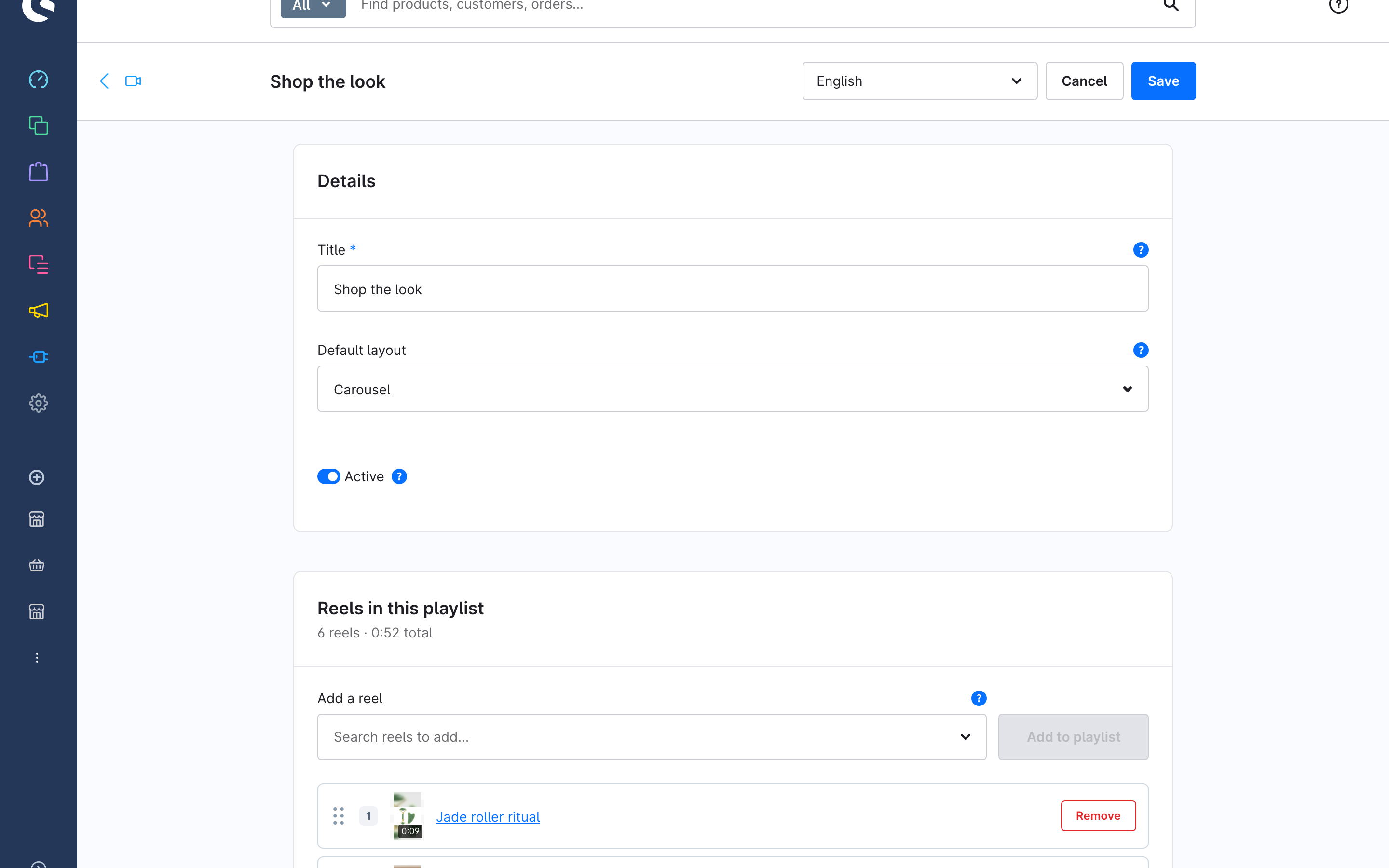
- Open Content > ReelCart > Playlists and click Create playlist.
- Enter a Title (internal; used in the element picker) and pick a Default layout — the layout mode used when the playlist is placed, unless the element overrides it.
- Leave Active on and click Save.
Add reels and set the order
In Reels in this playlist:
- Use Add a reel to search reels; you can pick several, then click Add to playlist to append them in one go.
- Drag the rows to set the play order. The header shows the reel count and total duration.
- Remove takes a reel out of the playlist without deleting it.
Reels can also be added from the other side: the Playlists card on a reel appends that reel to the playlists you pick there.
Where it is used
The Used by card lists the floating reels that play this playlist. Placements in Shopping Experiences are not listed — check the layouts themselves.
Place it
- In a layout: Shoppable Video element, content source Playlist — see Place reels with the Shoppable Video element.
- As a floating bubble that rotates through the playlist — see Run a floating reel.
- Several playlists as titled rows on one page — the Playlist hub element.
Only the playlist's Active reels appear; an inactive playlist never renders.