
Pin products to fixed positions
This guide shows every way to give a product a fixed position (a slot) in a category, and how to release it again. It assumes you have finished Getting started and that Custom order active is on for the category.
Every tile on the canvas carries a slot badge (1, 2, 3 …), which is the position shoppers of the previewed sales channel see it at. When you pin a product, it keeps that slot. Products you haven't pinned follow the fallback sorting.
Each change saves by itself in the background. There's no save button.
Drag a product to a slot
- Open Catalogues › Categories, select the category and open the Sorting tab.
- Drag the product's tile onto the tile that currently sits in the slot you want. The label next to the cursor shows the target, for example Drop → slot 5.
- Release the tile.
The product takes that slot. The products above it keep their current slots, so the top of the listing doesn't reshuffle behind your back.
Move a product with the tile actions
Point at a tile, or move keyboard focus onto it, to show its actions along the bottom of the product image.
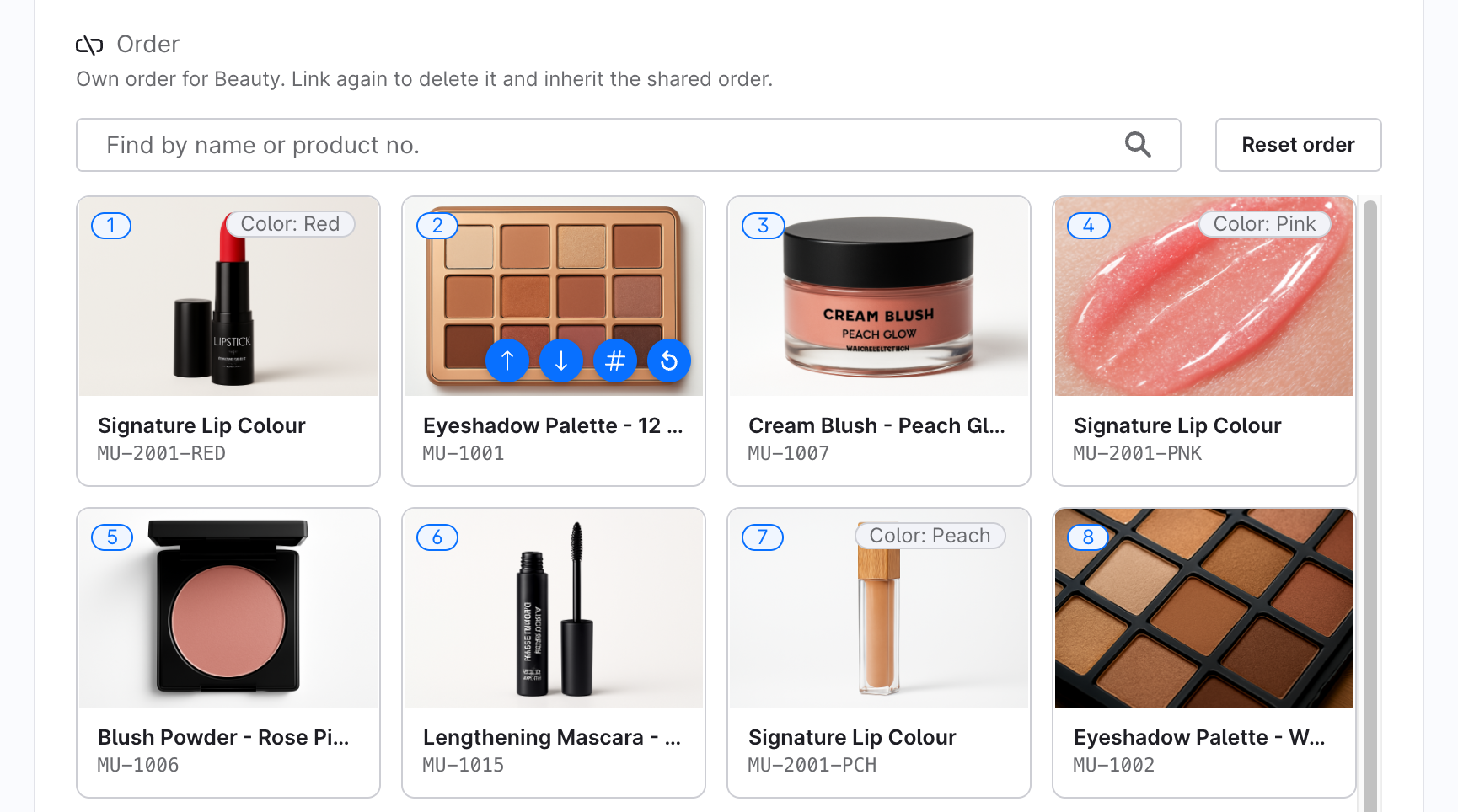
| Action | What it does |
|---|---|
| Move to top | Puts the product in slot 1. |
| Move to slot… | Opens a small dialog where you type the slot number. See below. |
| Move to bottom | Moves the product below every other product in the listing and marks it with an At the bottom chip. The product stays in the listing and remains visible, just last. If you send several products to the bottom, the most recent one ends up at the very end. |
| Back to automatic position | Releases the product. The fallback sorting decides where it lands. |
The actions are keyboard-operable, so you can arrange a category without dragging.
Move a product to a specific slot number
For big moves in large categories, typing a slot number is faster than dragging across the screen.
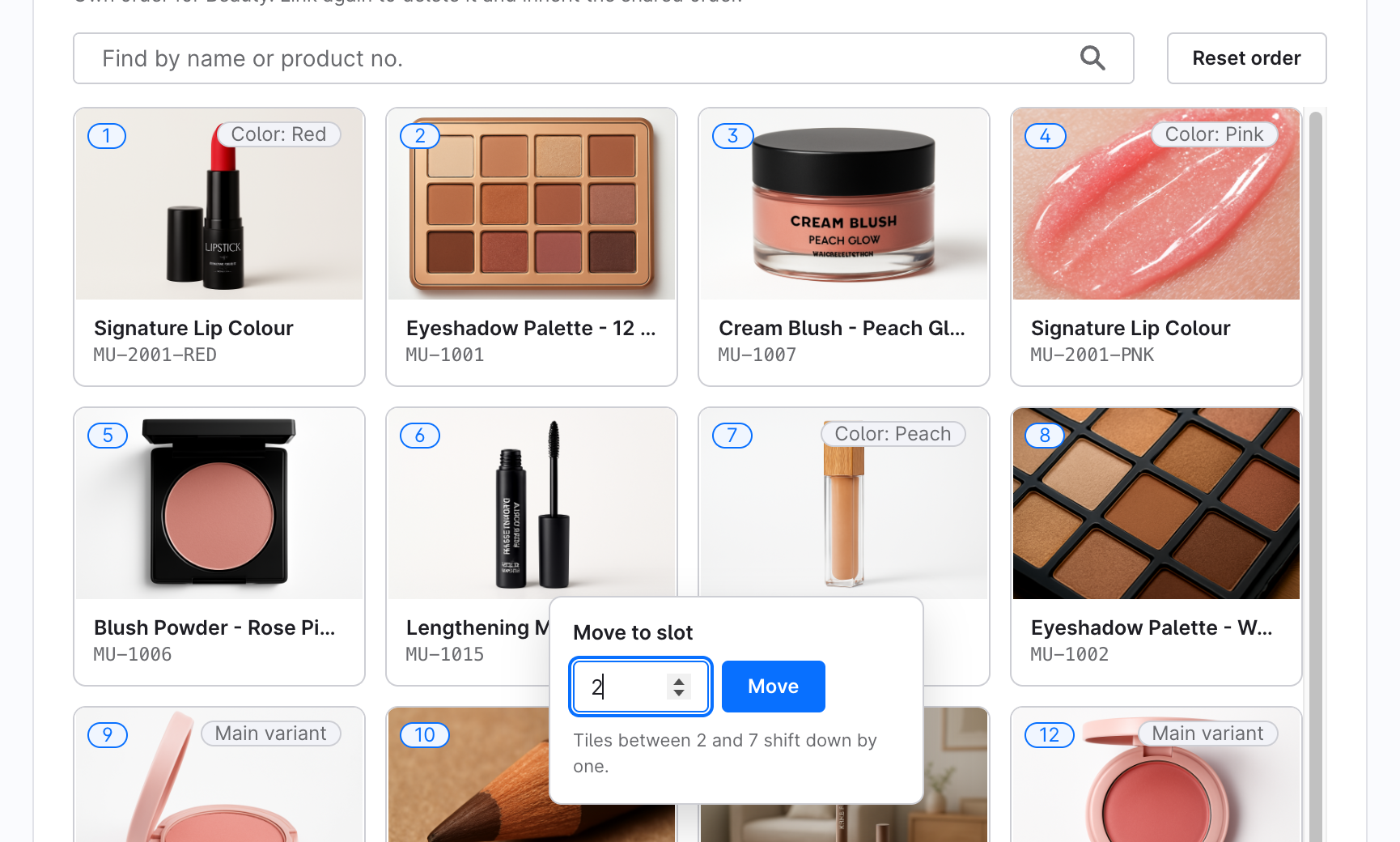
- Show the tile's actions and choose Move to slot….
- Type a slot between 1 and the number of tiles. The dialog tells you what will happen, for example "Tiles between 2 and 7 shift down by one."
- Press Enter or click Move. Press Escape to close the dialog without moving anything.
Find a product in a large category
- Type part of the product name or product number into Find by name or product no. above the canvas.
- The canvas scrolls to the first match and highlights it. The match count (for example "3 matches · ↵ next") appears next to the field.
- Press Enter to jump to the next match.
The search only highlights matches. It never hides tiles, so the slots you see stay correct while you search.
Release a product
Choose Back to automatic position on the tile. The product goes back to following the fallback sorting. Until the canvas reloads, it's shown at the start of the automatically sorted products. After the next reload it appears where the fallback sorting actually puts it.
To release every product in the category at once, see Reset a category to automatic sorting.
When you can't move anything
Dragging and the tile actions are unavailable when:
- the selected sales channel inherits the shared order. The banner above the canvas offers Unlink and Edit shared order, see Give a sales channel its own order;
- your admin role can view categories but not edit them, see Permissions;
- a previous move is still being saved. Wait a moment.