
Configure the storefront sorting
This guide covers what shoppers see on the storefront: the name of the Recommended sorting option, whether categories open in the custom order, and which fallback sorting the products you haven't placed follow.
Rename the Recommended option
The plugin adds one sorting option to the storefront. It's called Recommended in English and Empfohlen in German, and you can give it any name per language.
- Open Extensions › My extensions, find Product Sorting and choose Configure from its menu.
- Next to Name of the sorting option, click the globe icon (Edit per language).
- Enter a name for each language. A language you leave empty shows the name of the default language. The default language must keep a name.
- Save the dialog.
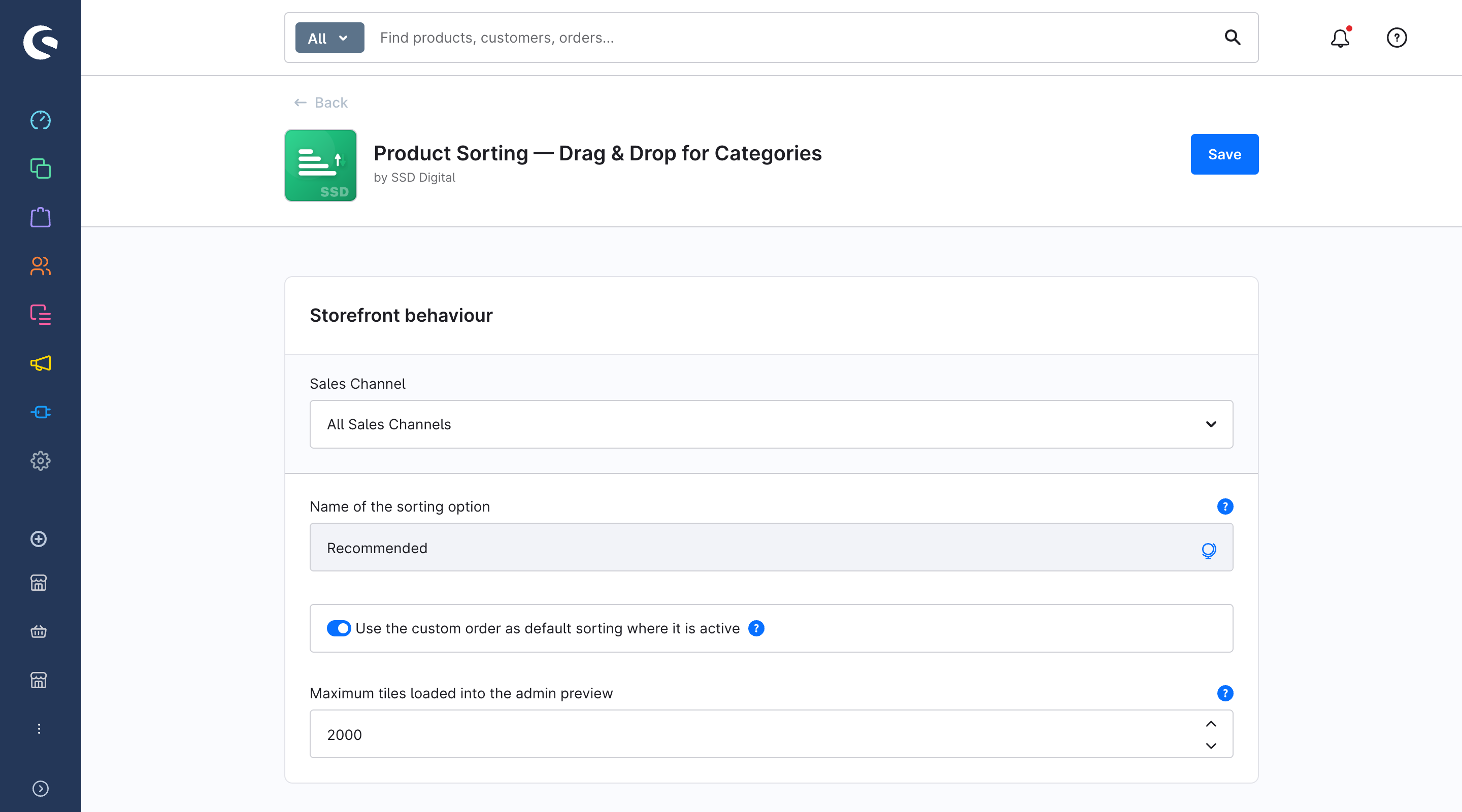
You can only rename the option here. It doesn't appear under Settings › Shop › Products, because the plugin manages it. Your admin role needs the permission to edit system settings.
Choose whether categories open in the custom order
In the same configuration page, Use the custom order as default sorting where it is active decides what shoppers get when they open a category with an active custom order:
- On (default): the category opens in the custom order, and shoppers can still pick any other sorting from the dropdown.
- Off: the category opens in its usual default sorting, and Recommended is only offered in the dropdown.
Either way, Recommended only appears on categories whose custom order is active. See Configuration for all settings.
When the category layout chooses a default sorting
If the category's layout (Shopping Experiences, product listing element) has a default sorting chosen explicitly, that choice wins, and the category opens in that sorting. The Sorting tab tells you so in a banner above the canvas, for example “Shoppers open this category sorted by “Price ascending”, the default sorting chosen in its layout. They see this order when they pick “Recommended”.” To open the category in your custom order, remove the default sorting from the layout's listing element.
Choose the fallback sorting
Products you haven't placed follow the fallback sorting, which is the sales channel's default sorting in Shopware. The plugin doesn't have its own setting for it.
- Open Settings › Shop › Products.
- Pick a sales channel in the sales channel switch at the top, or leave All Sales Channels to set it for every channel.
- Set Default sorting, for example Topseller, Price ascending or Name A-Z, and save.
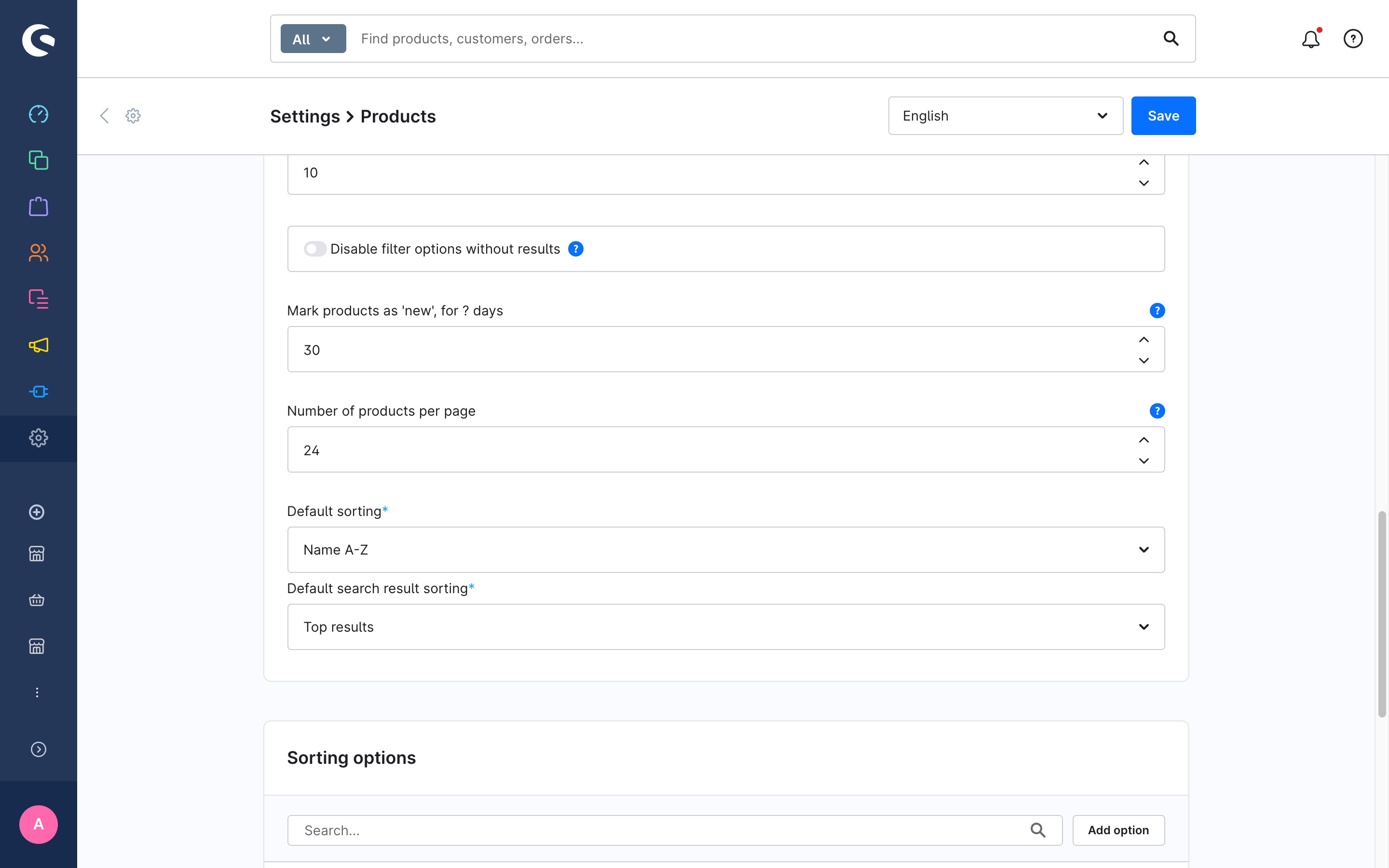
The Sorting tab and the Reset order dialog name the fallback sorting that's in effect for the previewed sales channel.
Use the custom order in a headless storefront
The custom order is also served through the Store API. Request the category listing with the sorting key ssd-product-sorting:
POST /store-api/product-listing/{categoryId}
sw-access-key: <your sales channel access key>
Content-Type: application/json

{ "order": "ssd-product-sorting" }
The response is in the order that sales channel serves, whether that's the shared order or the channel's own. If Use the custom order as default sorting where it is active is on, a request without order already gets the custom order.