
Change where the bar shows and how it looks
Placement and look are set in the plugin configuration, per sales channel. Open it from Extensions → My extensions → Unlock Bar → Configure, or with the Look button on the Unlock Bar page. Choose a sales channel at the top to change only that channel; settings you leave untouched are inherited from All Sales Channels.
For the full list of settings, see the configuration reference.
Choose where the bar appears
In the Display card, switch each place on or off:
- Show in the off-canvas cart
- Show on the cart page
- Show on the checkout confirm page
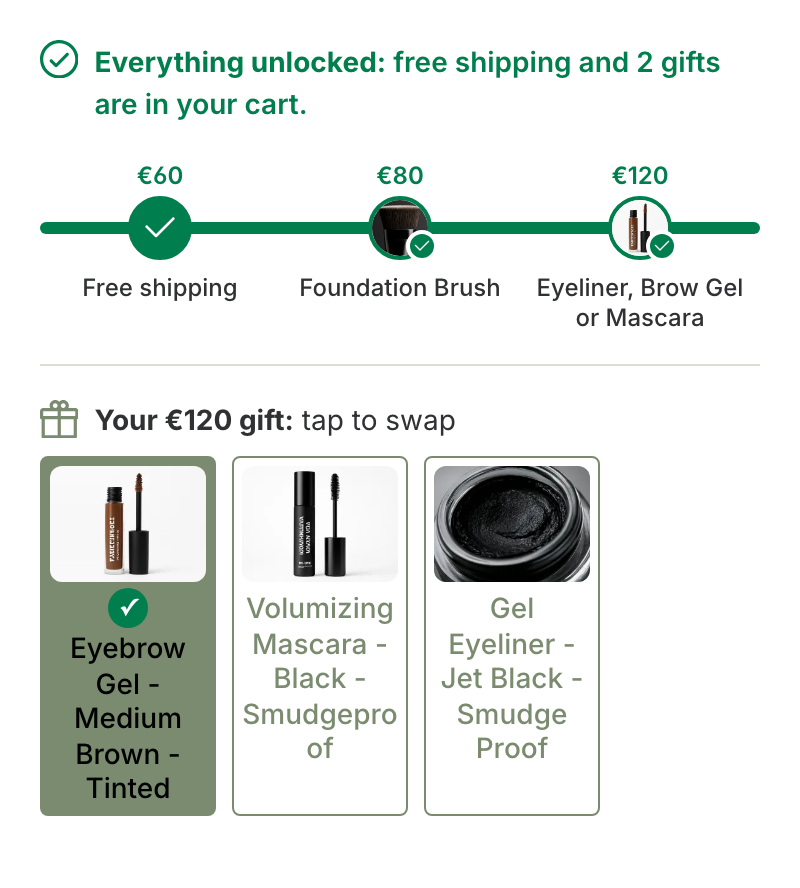
Show the "everything unlocked" message controls the message once the whole ladder is unlocked. Switched off, the bar keeps its ✓ markers and shows no message.
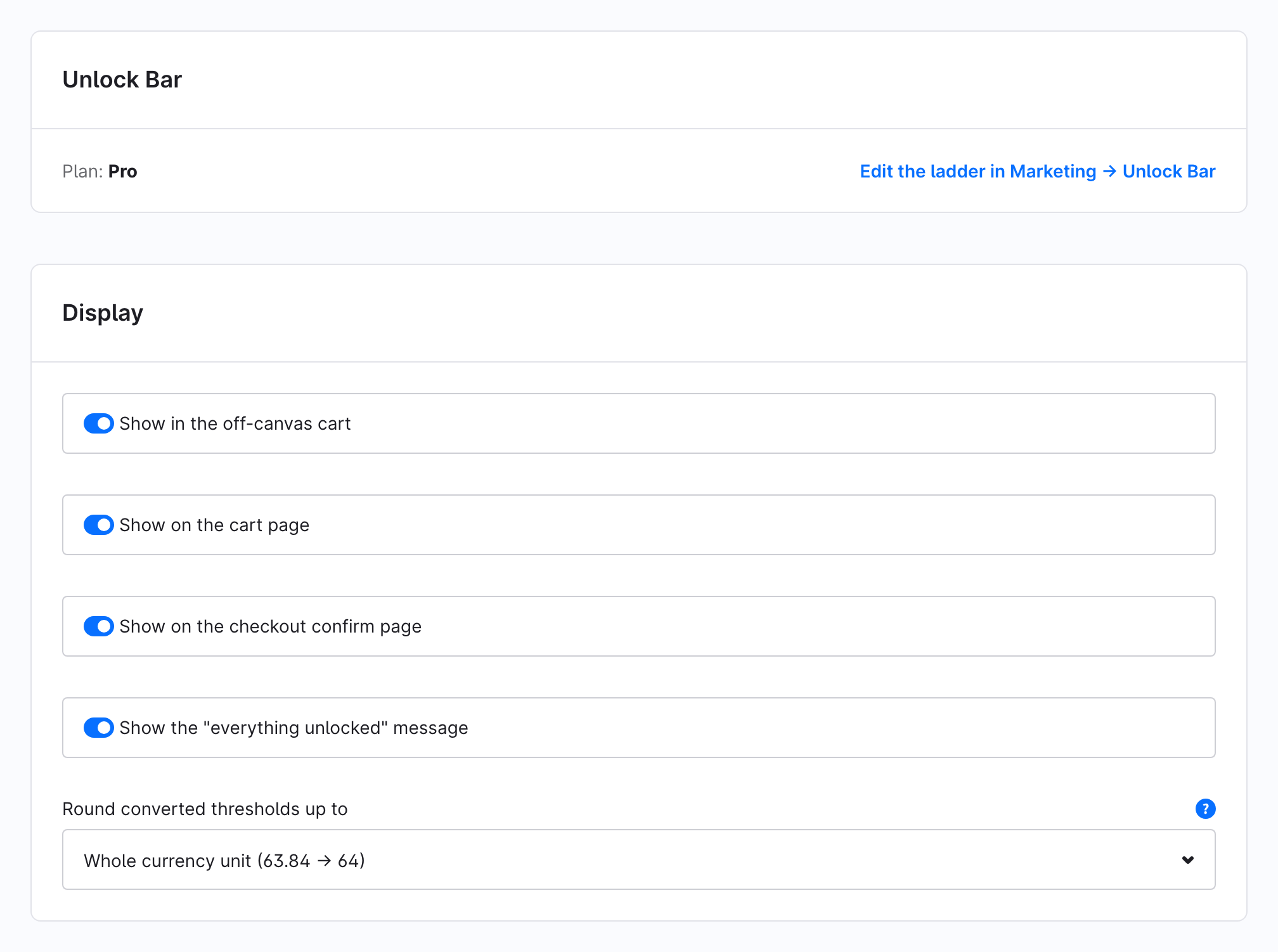
The header card shows your plan (Free or Pro) and links back to the ladder.
Match your theme
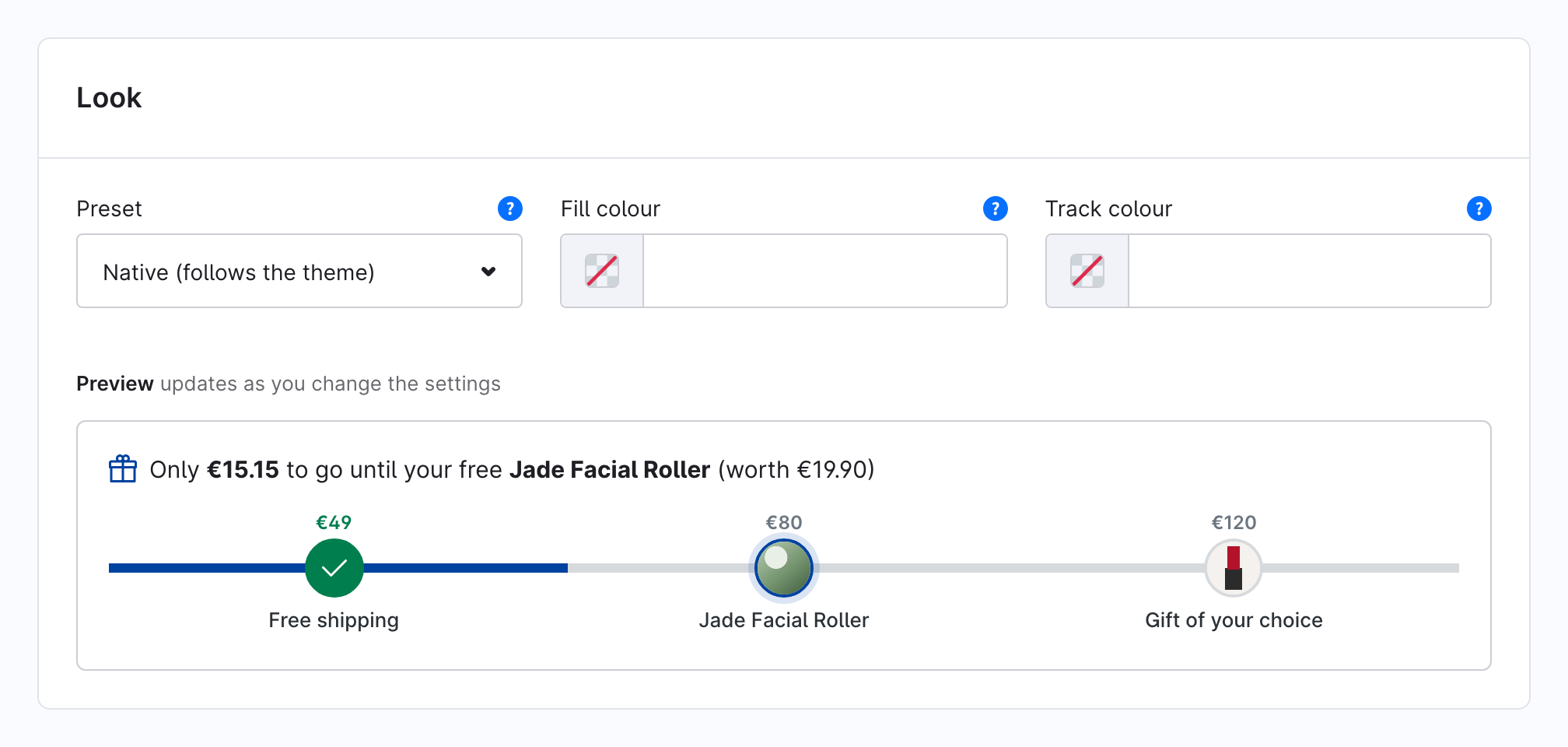
On the free plan the bar follows your storefront theme: the primary colour for the fill, the border colour for the track, and the theme's corner radius and font. To use other colours, set Fill colour and Track colour in the Look card. Leave a colour empty to use the theme's.
The Preview under the fields shows a sample bar with the values you are editing. Replay unlock plays the unlock animation.
Pick a preset (Pro)
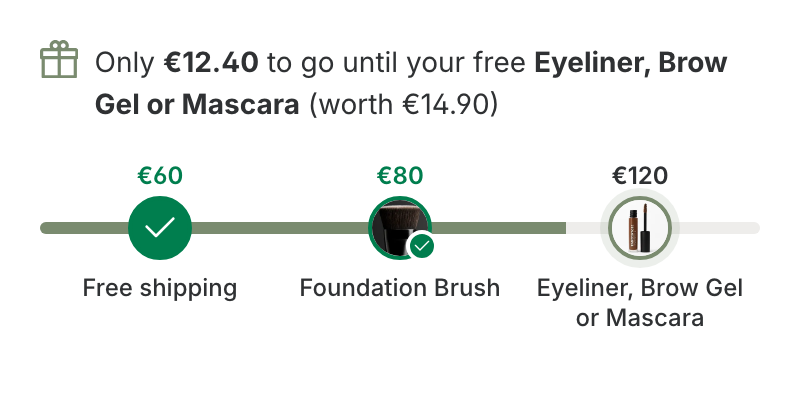
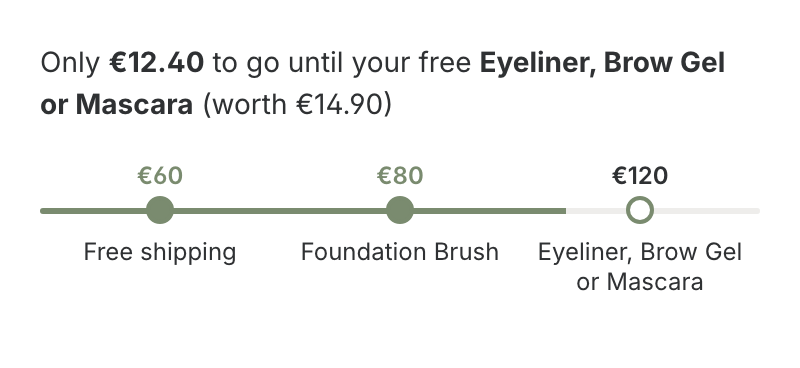
Preset offers four looks:
| Native | Minimal |
|---|---|
 |  |
| Bold | Steps |
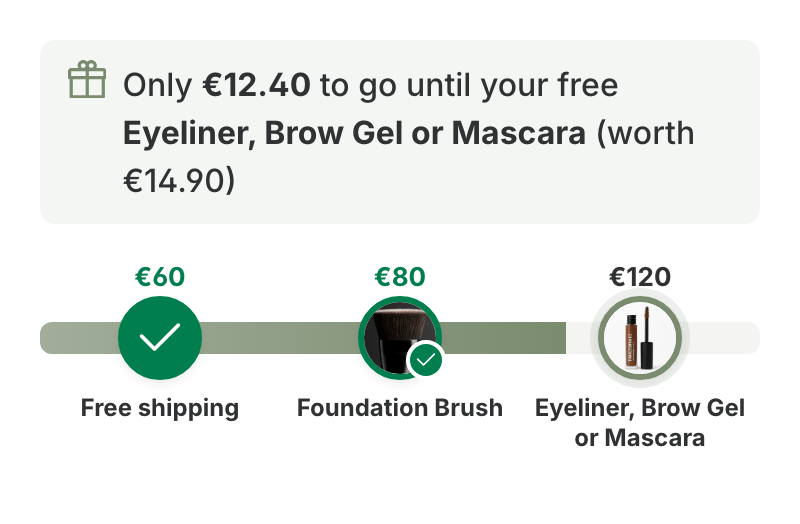 | 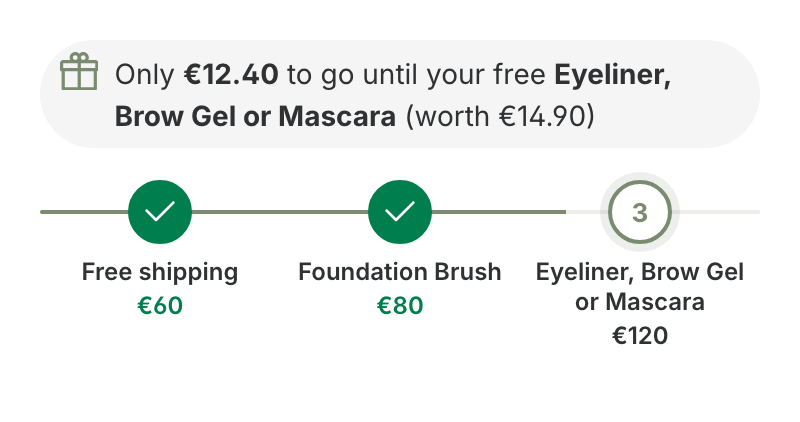 |
Native follows the theme and works on every plan. Minimal, Bold and Steps take effect with Pro. Without Pro you can still select and save them; the storefront shows Native until Pro is active.
Fine-tune the look (Pro)
The Look: fine controls (Pro) card adjusts the preset. Leave a field empty to keep the preset's value.
- Corner radius (px) and Bar height (px)
- Marker style: the preset's default, or gift photo, icon, dot or number
- Text colour and "Unlocked" colour
- Unlock celebration: off, pulse or confetti. It plays once when a milestone unlocks while the shopper is watching, and is left out for shoppers who have reduced motion switched on.
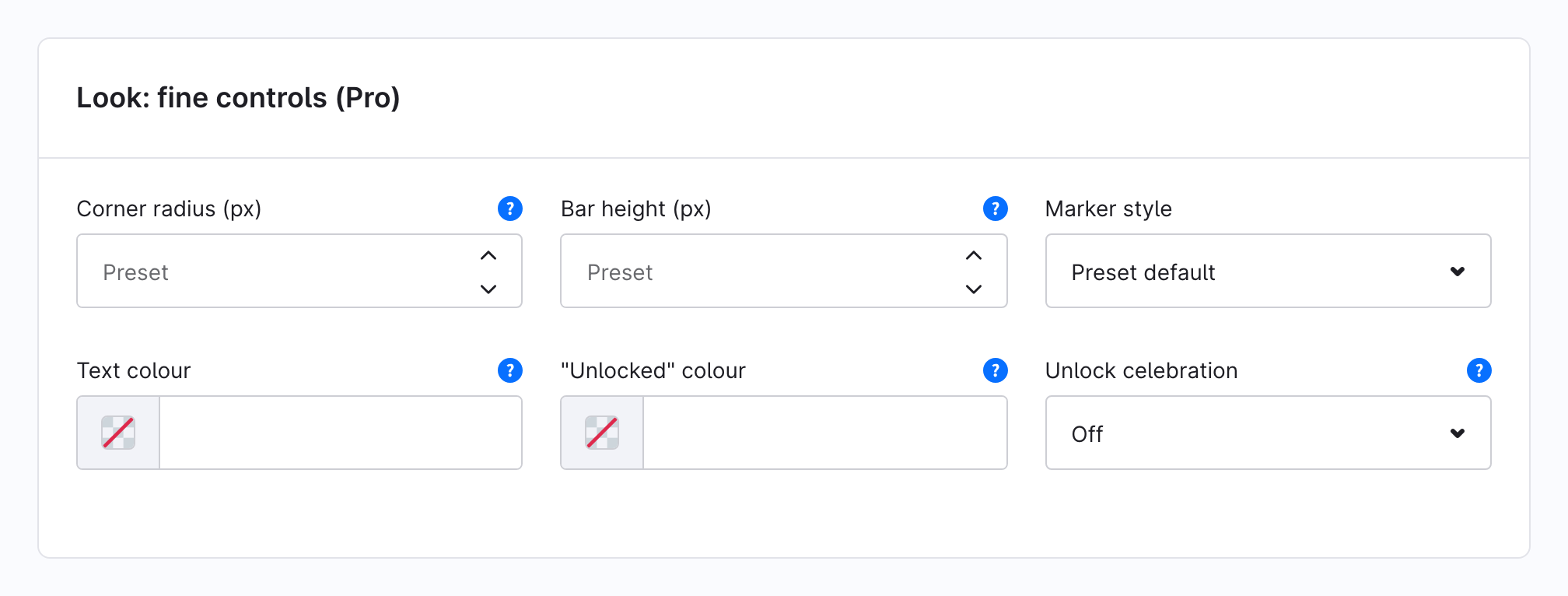
Without Pro, a lock row at the end of the card links to the in-app purchase. The values you enter are kept and take effect once Pro is active.
Change the texts
The bar's messages ("€… to go until free shipping", "Everything unlocked: …") are storefront snippets. Change them under Settings → Snippets; search for ssdUnlockBar.