
How to manage your box catalog
The box catalog is the list of packaging types PackGuard can suggest for orders. Every box in the catalog is tried when calculating a recommendation — only active boxes are included.
Prerequisite: Admin access with the ssd_packguard.creator role or higher. Navigate to Orders > PackGuard > Box Catalog.
Add a box manually
- Click Add box in the smart-bar.
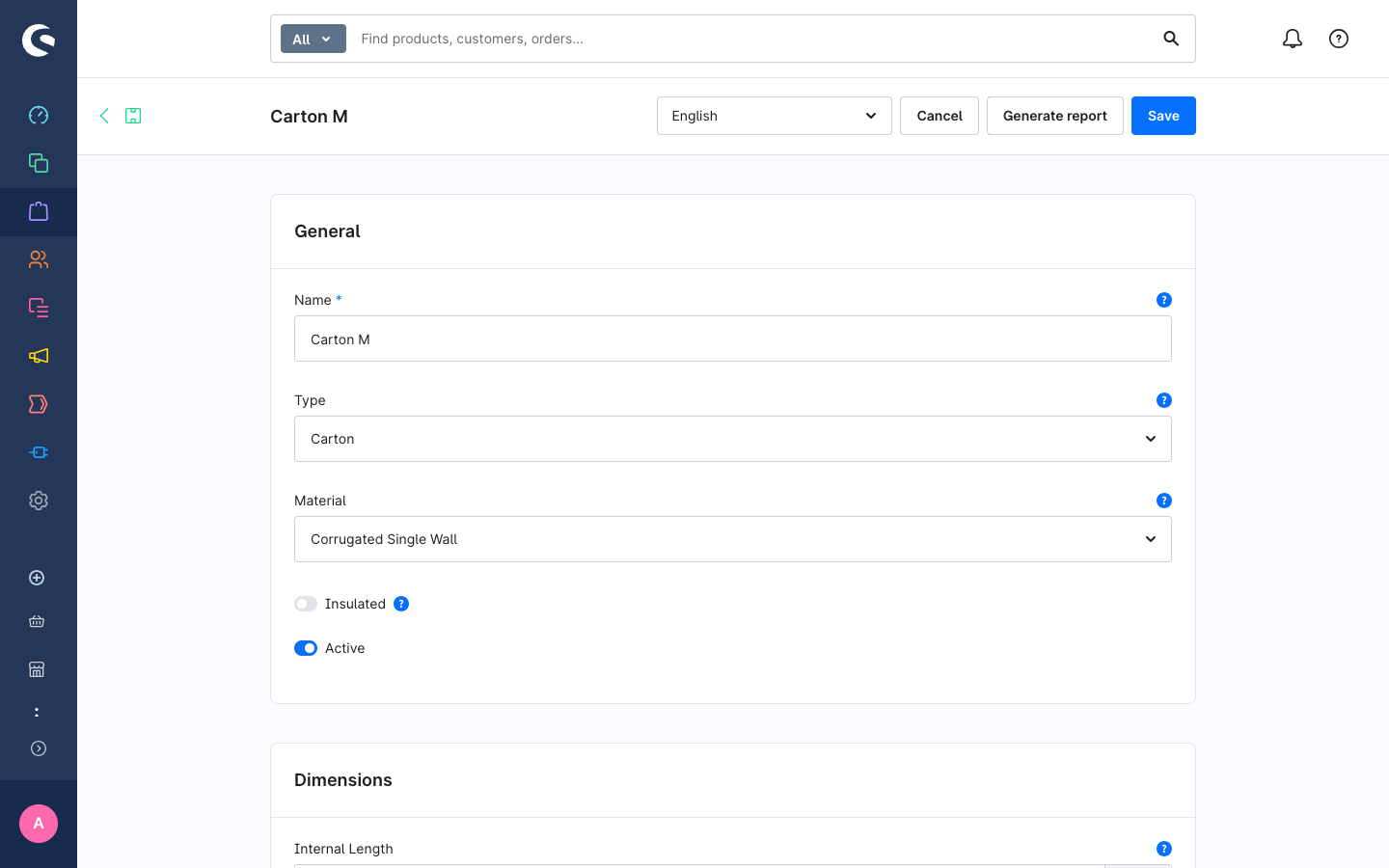
- Fill in the General card:
- Name — the internal label shown to staff in pickers and reports (e.g.
Carton S) - Type — one of Carton, Polybag, Padded Envelope, or Custom. The type determines which profile constraints apply.
- Name — the internal label shown to staff in pickers and reports (e.g.
- Fill in the Dimensions card. All values are stored in mm; use the unit dropdown on each field to enter in cm and let PackGuard convert.
- Internal Length, Internal Width, Internal Height — the usable inner dimensions
- Calculated Volume — read-only, updated automatically from L × W × H
- Fill in the Properties card:
- Weight — empty weight of the box in kg, added to the shipment weight estimate
- Cost — per-unit cost used for the savings calculation on the dashboard
- Material — construction material (affects recyclability notes in future versions)
- Insulated — tick if this box can keep contents temperature-stable; required for the Insulated constraint in packaging profiles
- Active — untick to remove the box from suggestions without deleting it
- Sort Order — lower values are tried first when multiple boxes fit
- Click Save.
Import preset boxes
Rather than entering dimensions from scratch, import generic archetypes:
- On the Box Catalog list page, click Import presets in the smart-bar (or the Import presets button in the empty-state card if the catalog is empty).
- In the modal, tick the archetypes you want — Carton XS/S/M/L/XL, Polybag S/M/L, Padded Envelope A5/A4.
- Click Import {count}.
Preset dimensions are generic starting points. After import, open each box and adjust the internal dimensions to match your actual stock. Importing a preset again does not create a second box — it resets the existing preset box to the preset values, so only re-import a preset when you want to discard your adjustments.
Edit a box
- Click on any box row in the catalog list to open its detail page.
- Change the fields you need.
- Click Save.
Deactivate a box
Deactivating a box removes it from future suggestions without deleting its history from past orders.
- Open the box detail page.
- Toggle Active to off.
- Click Save.
To reactivate, toggle it back on.
Delete a box
- Open the box detail page.
- Click Delete in the context menu (three-dot icon in the smart-bar) and confirm.
Deleting a box removes it permanently. Past order packaging records that reference this box will lose the box association. Consider deactivating rather than deleting boxes that have been used on orders.
Box fields reference
See the Configuration reference for the full field list with types and storage units.