
Target offers with rules, channels and priority
Goal: control exactly who sees an offer, on which sales channel, and which offer wins when several match the same spot.
Show an offer only to a specific audience
Open the offer and switch to the When tab.
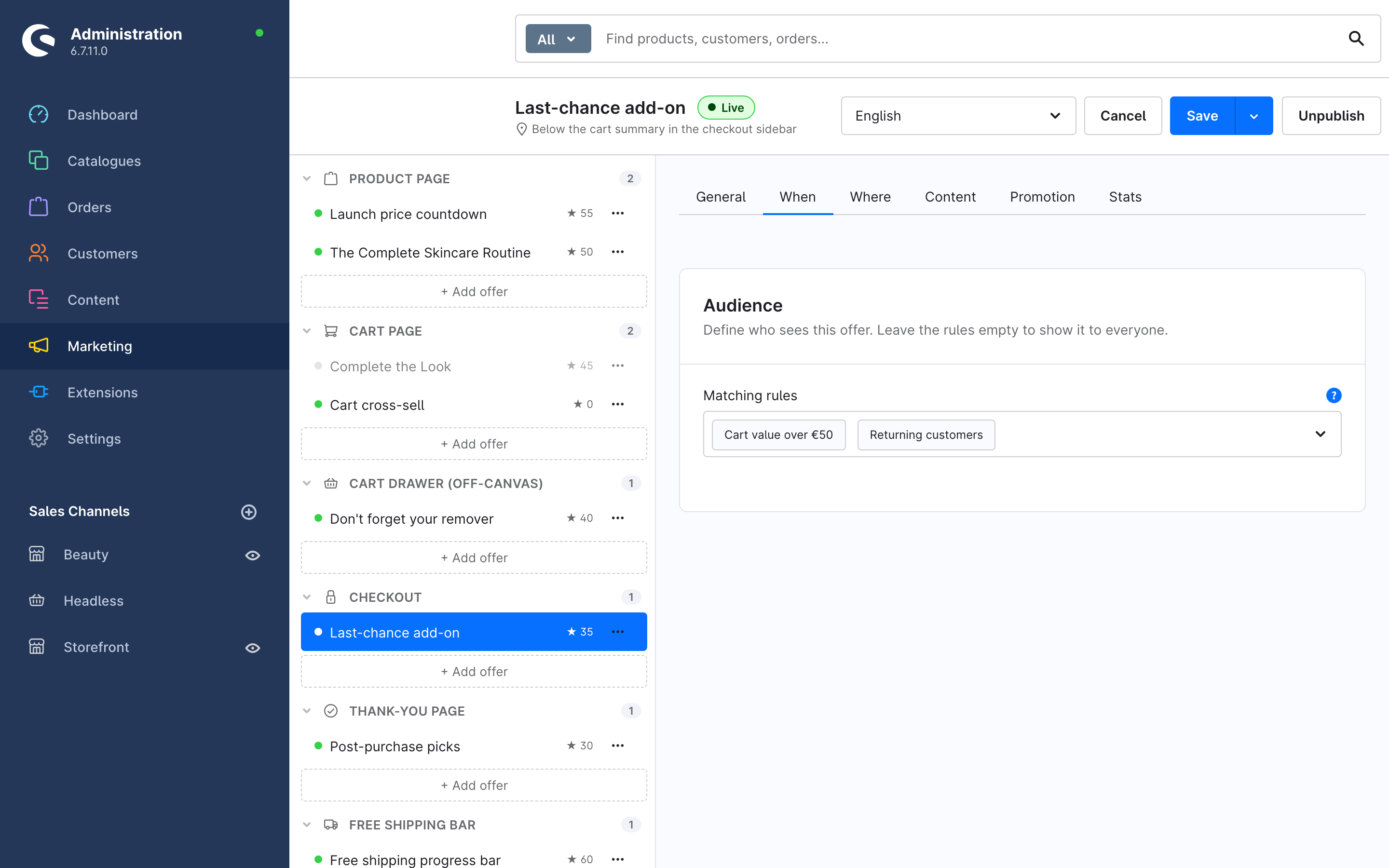
Pick one or more Matching rules — standard Shopware Rule Builder rules. The offer shows only when all selected rules match; leave the field empty to show the offer to everyone.
Anything the Rule Builder can express works as a condition, for example:
- Cart value over 50 € — upsell only when the order is worth it.
- Returning customers — different offers for new versus known customers.
- Date range — seasonal campaigns that switch themselves on and off.
- Customer group, country, currency, line items in the cart, custom fields, and any combination.
Create new rules in Settings > Shop > Rule Builder; they appear in the picker immediately. You can also create one inline from the rule field.
Limit an offer to sales channels
On the Where tab, use Sales channels to limit the offer to specific channels. Leave the field empty to show the offer on every channel.
Decide which offer wins a slot
When several active offers match the same slot at the same time, they all render — ordered by Priority (General tab). Higher numbers render first. Leave priority at 0 unless you need a specific order.
The offer list sidebar shows each offer's priority (the ★ value), so you can review the order per placement group at a glance.
Pause an offer
Use Unpublish in the top bar — the offer keeps its whole configuration but stops rendering (status Draft). Publishing it again brings it back instantly. There is no need to delete offers between campaigns; unpublish and duplicate (⋯ > Duplicate in the sidebar) cover campaign variants.