
Reset a category to automatic sorting
This guide shows the two ways to hand a category back to automatic sorting. One throws your arrangement away. The other only pauses it.
| You want to… | Use |
|---|---|
| Start over. Every product follows the fallback sorting again, and your arrangement is deleted. | Reset order |
| Stop serving the custom order but keep the arrangement for later. | Switch off Custom order active |
Start over with Reset order
- Open Catalogues › Categories, select the category and open the Sorting tab.
- In the Sales channel field, pick the order you want to reset:
- All Sales Channels resets the shared order;
- a sales channel with its own order resets that channel's order.
- Click Reset order next to the search field above the canvas.
What happens next depends on which order you reset:
- Shared order: every product you placed goes back to the fallback sorting. If more than 50 products are affected, the plugin asks Reset order? first. With fewer, the reset runs straight away.
- A sales channel's own order: the plugin always asks Back to the shared order? first. The channel's own order is deleted and the channel follows the shared order again. It does not fall back to the fallback sorting, because a sales channel can't own an empty order.
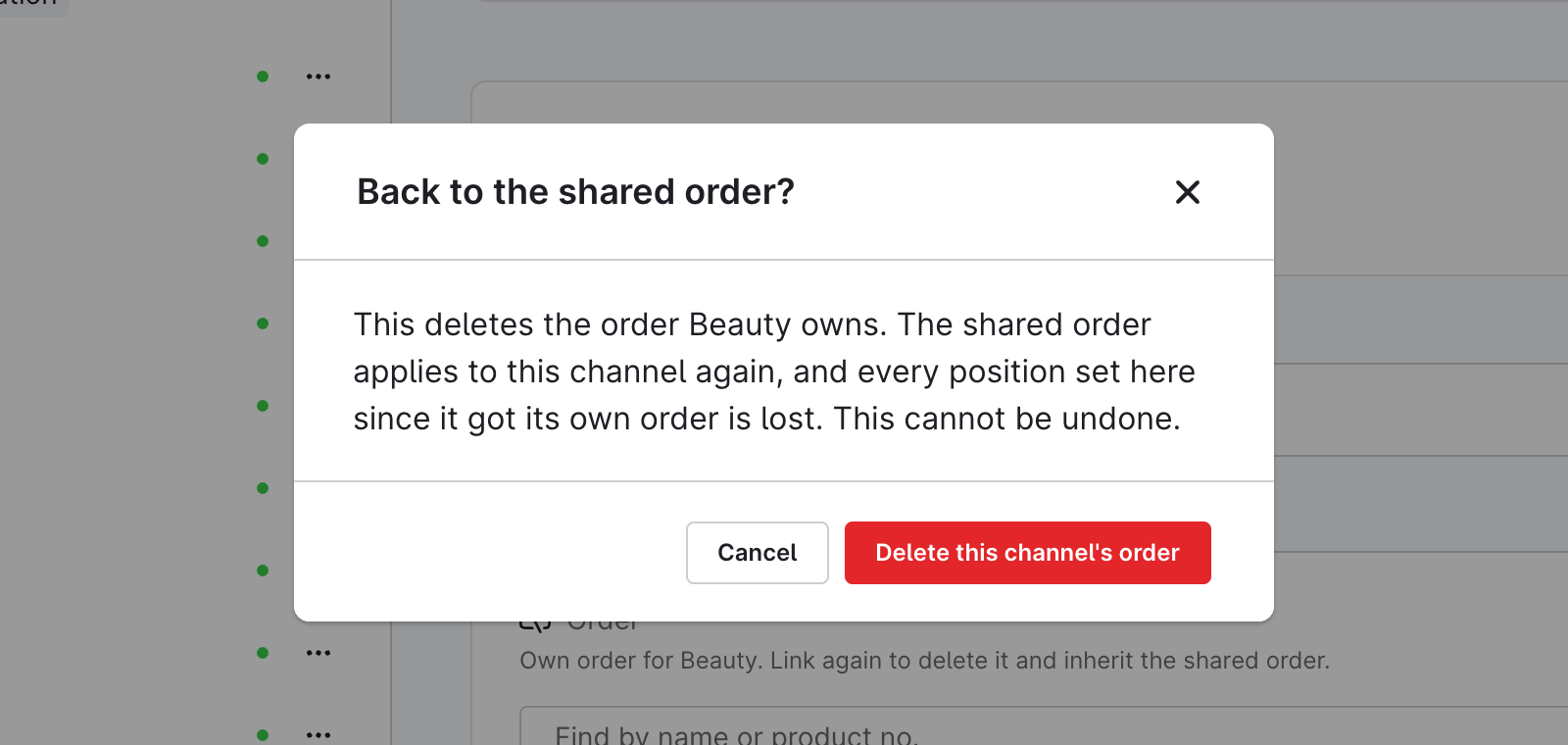
You can't undo a reset. Reset order is disabled while the selected sales channel inherits the shared order. To reset the shared order, pick All Sales Channels.
Pause the custom order
- Open the Sorting tab of the category.
- Switch off Custom order active in the Custom order card.
The category behaves exactly as it did before the plugin: shoppers get the sales channel's own sorting, and Recommended disappears from the category's sorting dropdown. Your arrangement is kept. Switch Custom order active back on and it applies again.
This switch applies to the category in every sales channel.