
Give a sales channel its own order
By default, every sales channel serves the category's shared order. This guide shows how to give one sales channel an order of its own, for example a different lead row for your B2B shop, and how to switch it back to the shared order.
Before you start
- The category has Custom order active switched on.
- The sales channel is active and the category is part of its navigation. Otherwise the canvas has no listing for that channel to show.
Give the sales channel its own order
Open Catalogues › Categories, select the category and open the Sorting tab.
In the Listing — as shoppers see it card, pick the sales channel in the Sales channel field.
The Order row below the field says "Inherits the shared order." The canvas is read-only in this state, and a banner offers Unlink and Edit shared order.
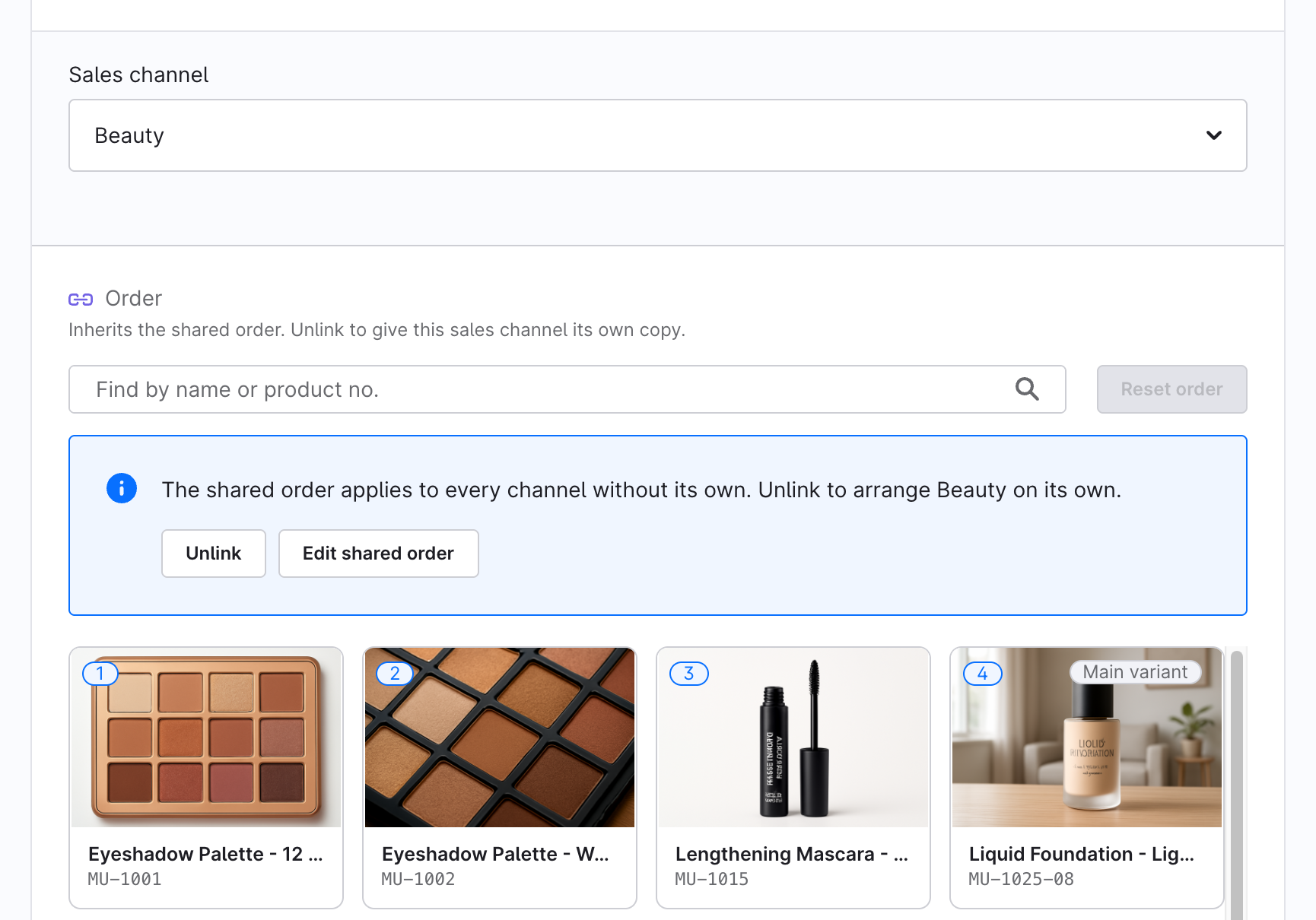
Click Unlink, either in the banner or on the inheritance icon in the Order row.
The sales channel now has its own copy of the shared order. The badge at the top right of the card reads Own order · channel name, and every move you make from now on changes only this channel.
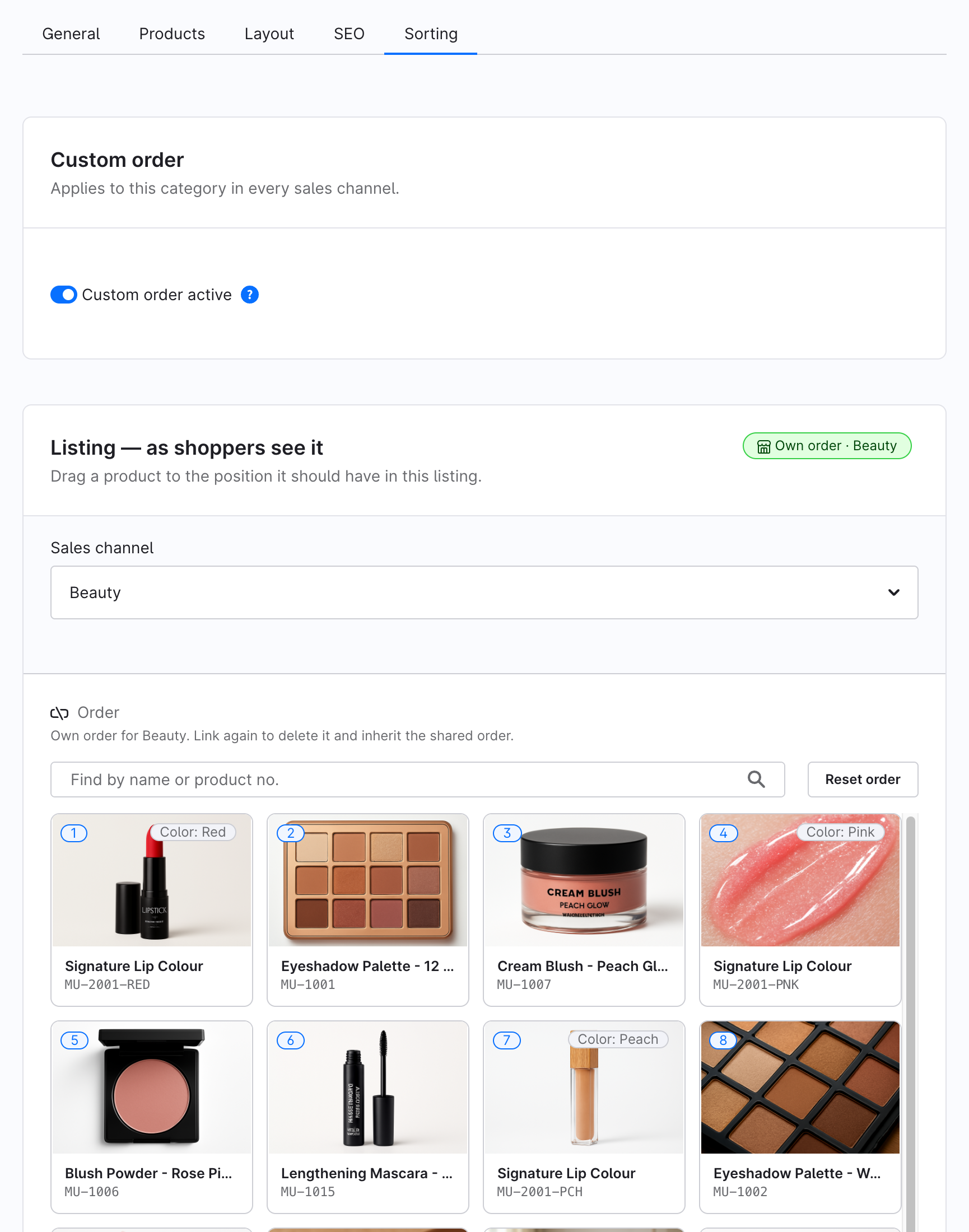
The copy and the shared order are independent from here on. Later changes to the shared order don't reach this channel.
If the shared order was empty when you unlinked, there's nothing to copy yet. The channel's own order starts with the first product you move in it.
Edit the shared order
To change the order that all inheriting sales channels serve, pick All Sales Channels in the Sales channel field, or click Edit shared order in the banner of an inheriting channel.
The canvas then shows the shared order through one of your sales channels. The badge names that channel, for example Shared order · previewing as Storefront. If a product you placed in the shared order isn't sold in that channel, the card says so, for example "Positioned but hidden in this channel: 2". Those products keep their slots.
Switch a sales channel back to the shared order
- Pick the sales channel in the Sales channel field. The badge reads Own order · channel name.
- Click the inheritance icon in the Order row.
- Confirm Back to the shared order? with Delete this channel's order.
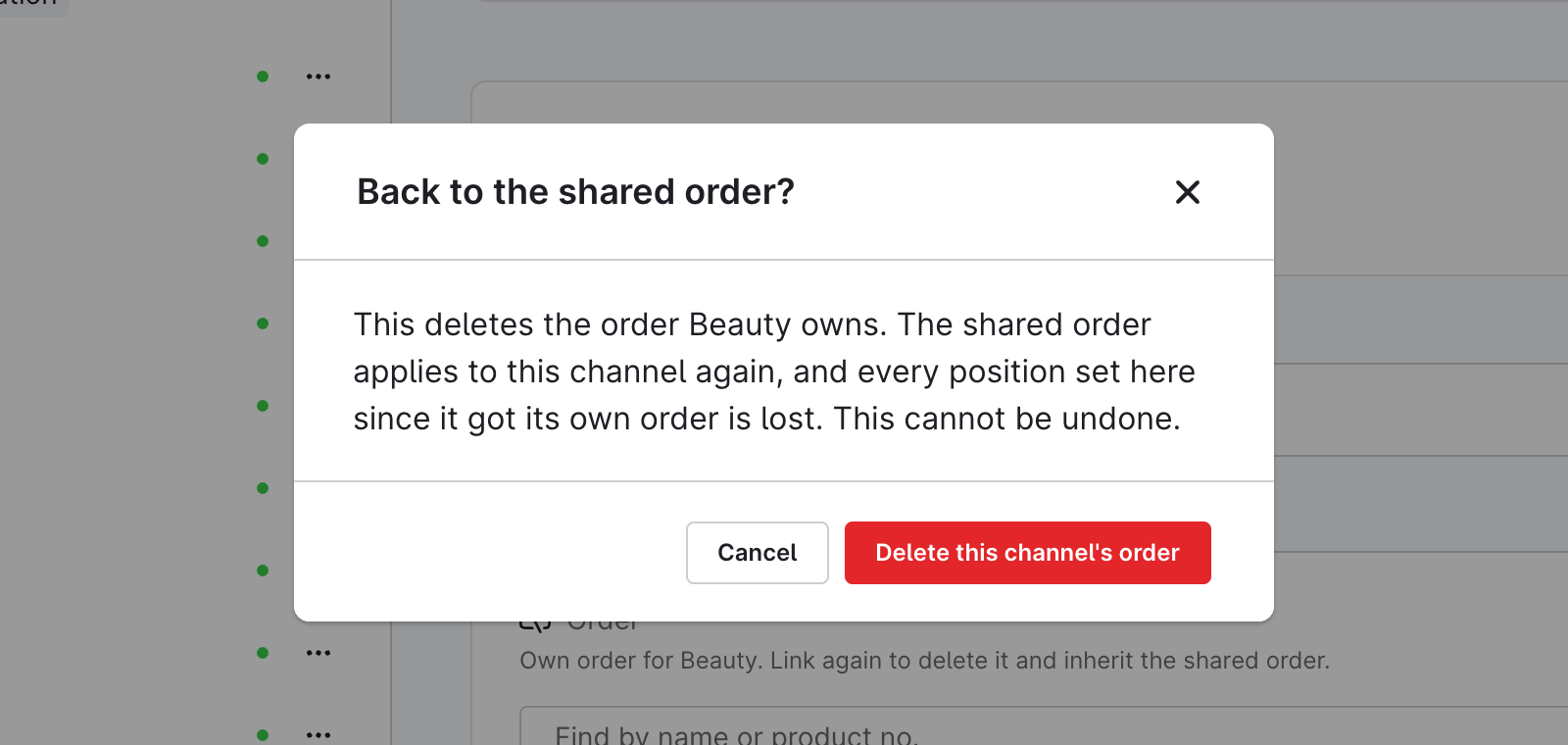
The channel's own order is deleted and the shared order applies to the channel again. Any positions set in this channel since it got its own order are lost, and you can't undo this.
Reset order in a channel that has its own order does the same thing: it returns the channel to the shared order, not to the fallback sorting.